
🚀 Git & GitHub for DevOps: Complete Beginner's Guide with Commands, Branching, Git Hooks & GitHub Actions
If you are learning DevOps, Cloud, CI/CD, Docker, Kubernetes, or software development, Git and GitHub are two of the most important tools you need to understand.
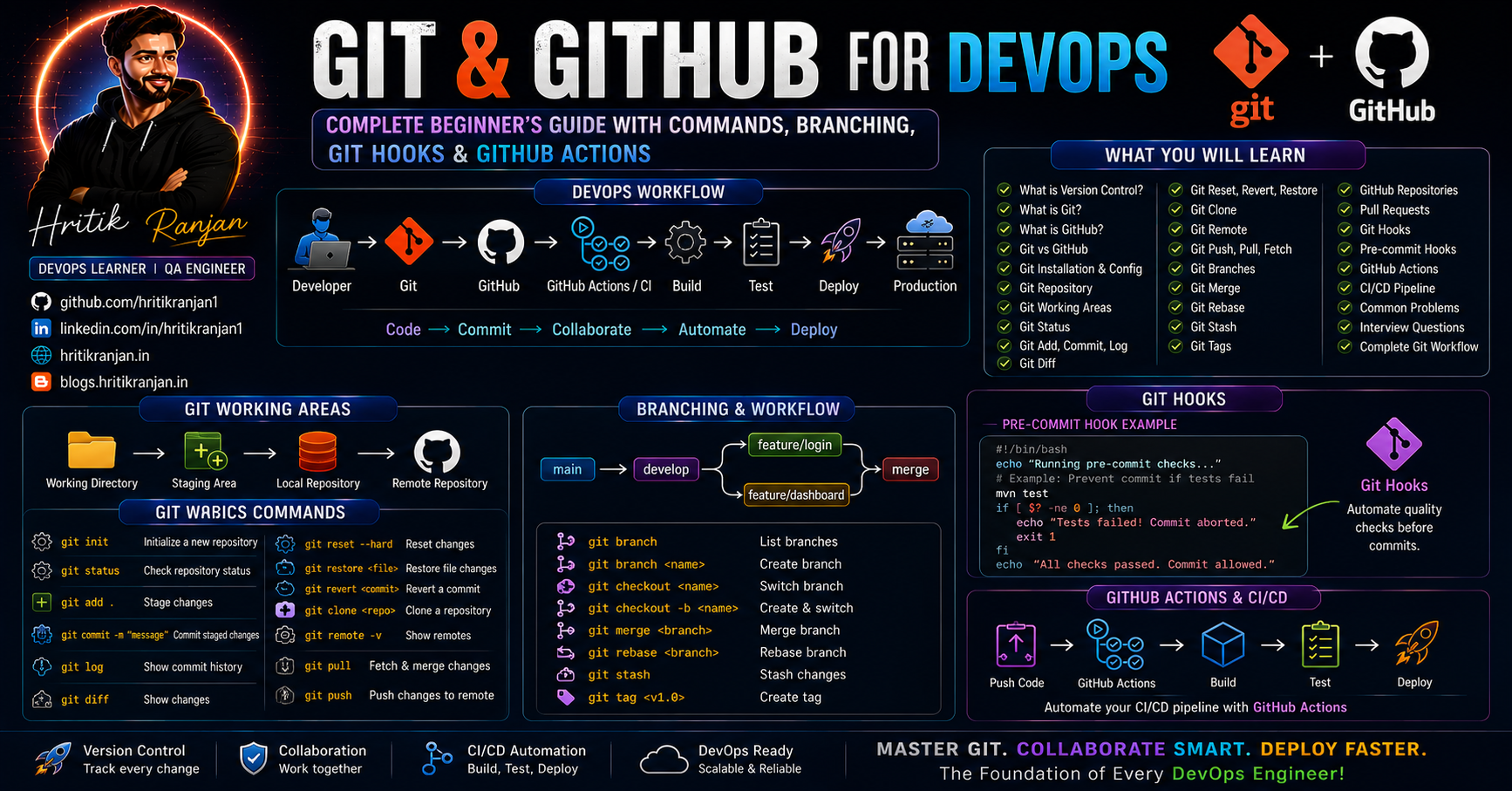
Almost every modern DevOps workflow starts with source code.
Developers write code → Git tracks the changes → GitHub stores and collaborates on the code → CI/CD tools test and deploy it.
A simple DevOps workflow looks like this:
Developer
    ↓
Git
    ↓
GitHub
    ↓
GitHub Actions / CI Pipeline
    ↓
Build
    ↓
Test
    ↓
Deploy
    ↓
Production
In this blog, we will understand Git and GitHub from the basics to practical DevOps workflows.
We will cover:
What is Version Control?
What is Git?
What is GitHub?
Git vs GitHub
Git installation and configuration
Git repository
Git working areas
Git status
Git add
Git commit
Git log
Git diff
Git reset
Git revert
Git restore
Git clone
Git remote
Git push
Git pull
Git fetch
Git branches
Git merge
Git rebase
Git stash
Git tags
GitHub repositories
Pull Requests
Git Hooks
Pre-commit hooks
GitHub Actions
CI/CD
Common Git problems
Git interview questions
Complete Git workflow
Let's start from the beginning.
📌 Table of Contents
What is Version Control?
Why Do We Need Version Control?
What is Git?
What is GitHub?
Git vs GitHub
Git Installation
Configure Git
What is a Git Repository?
Git Working Areas
git statusgit initgit addgit commitgit loggit showgit diffgit restoregit resetgit revertgit clonegit remotegit pushgit pullgit fetchGit Branches
Creating Branches
Switching Branches
Deleting Branches
Git Merge
Git Rebase
Git Stash
Git Tags
GitHub Repository
Pull Requests
Code Review
Git Hooks
Pre-Commit Hooks
GitHub Actions
GitHub Actions Workflow
CI/CD with GitHub Actions
.gitignoreGit Aliases
Common Git Errors
Recommended Git Workflow
DevOps Git Workflow
Git Cheat Sheet
Interview Questions
What I Learned
Conclusion
🔄 What is Version Control?
A Version Control System (VCS) is a system that tracks changes made to files over time.
Imagine you are working on a project.
Initially:
project/
└── app.py
You modify it.
Then you modify it again.
Without version control, you might create:
app-final.py
app-final-new.py
app-final-new-2.py
app-final-latest.py
app-final-latest-working.py
😅 This quickly becomes difficult to manage.
Version control solves this problem.
It keeps a history of your changes.
Version 1
   ↓
Version 2
   ↓
Version 3
   ↓
Version 4
You can see what changed and, when necessary, return to an earlier version.
🤔 Why Do We Need Version Control?
Version control provides several benefits.
1. Track Changes
You can see who changed what and when.
2. Collaboration
Multiple developers can work on the same project.
3. Backup
The code history is preserved.
4. Branching
Developers can work on different features independently.
5. Rollback
You can undo unwanted changes.
6. Code Review
Teams can review changes before merging them.
7. CI/CD Integration
Git repositories can trigger automated testing and deployment.
🐙 What is Git?
Git is a distributed version control system.
Git runs on your local machine and tracks changes to your project.
You can use Git without GitHub.
For example:
Your Computer
     |
     ↓
Git Repository
     |
     ↓
Commits
Git stores your project's history locally.
☁️ What is GitHub?
GitHub is a platform for hosting Git repositories and collaborating on software projects.
It provides features such as:
Remote repositories
Pull Requests
Code Reviews
Issues
Discussions
GitHub Actions
Project management
Collaboration
The relationship can be understood as:
Git
 ↓
Version Control

GitHub
 ↓
Hosting + Collaboration + Automation
⚔️ Git vs GitHub
| Git | GitHub |
|---|---|
| Version control tool | Cloud development platform |
| Runs locally | Primarily hosted online |
| Tracks file changes | Hosts Git repositories |
| Creates commits | Stores remote repositories |
| Creates branches | Provides Pull Requests |
| Can work offline | Requires network for remote operations |
| Open-source software | Platform/service |
In simple words:
Git manages your code history. GitHub helps you store, share, review, and automate that Git-based project online.
💻 Installing Git
Check whether Git is installed:
git --version
Example:
git version 2.x.x
If Git is not installed, install it for your operating system and run the command again.
⚙️ Configure Git
Before making commits, configure your identity.
Set your username:
git config --global user.name "Your Name"
Set your email:
git config --global user.email "you@example.com"
Check configuration:
git config --list
You can also check individual values:
git config user.name
git config user.email
📦 What is a Git Repository?
A Git repository is a project directory that Git tracks.
Create a project:
mkdir my-project
Move inside:
cd my-project
Initialize Git:
git init
Git creates a hidden directory:
.git/
This directory contains Git's internal information and history.
🧩 Git Working Areas
One of the most important concepts for beginners is understanding Git's working areas.
Working Directory
       ↓
   git add
       ↓
Staging Area
       ↓
 git commit
       ↓
Local Repository
Let's understand each one.
1️⃣ Working Directory
This is where you create or modify files.
Example:
my-project/
└── app.py
You edit:
app.py
Git detects the modification.
2️⃣ Staging Area
You tell Git:
I want this change to be included in my next commit.
Command:
git add app.py
3️⃣ Local Repository
You permanently record the staged changes:
git commit -m "Add application file"
🔍 git status
One of the most frequently used Git commands is:
git status
It shows:
Current branch
Modified files
Untracked files
Staged files
Files ready to commit
Example:
git status
You might see:
Untracked files:
    app.py
After:
git add app.py
the file becomes staged.
Run:
git status
again.
Now Git will show that the file is ready to be committed.
🆕 git init
Create a new Git repository:
git init
Example:
mkdir devops-project
cd devops-project
git init
Output may indicate that an empty Git repository has been initialized.
➕ git add
Add one file:
git add app.py
Add multiple files:
git add app.py index.html
Add all changed files:
git add .
Another common form:
git add -A
Example
Suppose:
app.py
README.md
Dockerfile
You can stage everything:
git add .
Then check:
git status
💾 git commit
A commit saves staged changes into Git history.
git commit -m "Add initial application"
A good commit message should describe what changed.
Good:
git commit -m "Add login functionality"
Bad:
git commit -m "changes"
Better commit messages make project history easier to understand.
📜 git log
View commit history:
git log
A shorter format:
git log --oneline
Example:
a82f123 Add login functionality
7bc1234 Add database configuration
3af4567 Initial commit
👀 git show
Display information about a particular commit:
git show <commit-id>
Example:
git show a82f123
It shows information about the commit and the changes introduced by it.
🔎 git diff
git diff shows changes that have not been staged.
Suppose you modify:
app.py
Run:
git diff
Git shows the differences.
After staging:
git add app.py
use:
git diff --staged
to see staged changes.
↩️ git restore
git restore can discard changes in the working directory.
For example:
git restore app.py
This restores the working-tree version of the file from Git's tracked version.
⚠️ Be careful because this can discard local changes.
To unstage a file:
git restore --staged app.py
The file remains modified but is removed from the staging area.
🔄 git reset
git reset moves the current branch to another commit and can modify the staging area or working tree depending on the option.
View recent commits:
git log --oneline
Then, for example:
git reset --soft HEAD~1
This moves HEAD back one commit while keeping the changes staged.
A common option:
git reset --mixed HEAD~1
keeps the changes in the working directory but unstages them.
Another option:
git reset --hard HEAD~1
can discard local changes.
⚠️ --hard should be used carefully.
↩️ git revert
git revert creates a new commit that reverses an earlier commit.
Example:
git revert <commit-id>
This is often safer for shared branches because it doesn't rewrite existing commit history.
Conceptually:
Commit A
   ↓
Commit B
   ↓
Commit C
   ↓
Revert B
   ↓
New Commit D
The original commit remains in history.
📥 git clone
git clone downloads an existing remote repository.
Example:
git clone https://github.com/username/project.git
Then:
cd project
Now you have a local copy of the repository.
🔗 git remote
A remote is a reference to a remote Git repository.
Check remotes:
git remote -v
Add GitHub as origin:
git remote add origin https://github.com/username/project.git
Check again:
git remote -v
You may see:
origin  https://github.com/username/project.git (fetch)
origin  https://github.com/username/project.git (push)
⬆️ git push
git push sends your local commits to a remote repository.
Example:
git push origin main
The first push for a branch is often:
git push -u origin main
The -u option establishes the upstream relationship, making later pushes simpler:
git push
⬇️ git pull
git pull retrieves changes from a remote repository and integrates them into your current branch.
git pull origin main
In simple terms:
Remote Repository
       ↓
     pull
       ↓
Local Repository
It generally performs a fetch followed by an integration step.
📡 git fetch
git fetch downloads information from a remote repository without automatically integrating those changes into your current branch.
git fetch origin
You can then inspect the remote changes before deciding what to merge or rebase.
A useful difference:
git fetch
    ↓
Download remote changes
    ↓
Do not automatically integrate

git pull
    ↓
Fetch
    ↓
Integrate
🌿 What is a Git Branch?
A branch allows you to work on changes independently.
Suppose the main project is:
main
 |
 +-- Production Code
You want to develop a login feature.
Create:
feature/login
Now:
main
 |
 +-- Production Code

feature/login
 |
 +-- Login Development
Your feature work does not have to directly modify main.
🌱 Create a Branch
Create:
git branch feature-login
List branches:
git branch
The current branch is usually marked with *.
🔀 Create and Switch to a Branch
Traditional command:
git checkout -b feature-login
Modern command:
git switch -c feature-login
The second command is easier to understand:
switch -c
     ↓
create + switch
🔄 Switch Branch
Using:
git switch main
or:
git checkout main
🗑️ Delete a Branch
Delete a local branch:
git branch -d feature-login
Force deletion:
git branch -D feature-login
Use -D carefully because it can delete a branch containing unmerged work.
🌍 Push a New Branch to GitHub
Create:
git switch -c feature-login
Make changes.
Then:
git add .
git commit -m "Add login feature"
Push:
git push -u origin feature-login
Now the branch exists on GitHub.
🔀 Git Merge
Suppose:
main
 |
 A---B

feature
 |
 A---B---C---D
After completing the feature, switch to main:
git switch main
Then:
git merge feature
The feature changes are integrated into main.
⚠️ Merge Conflicts
Sometimes two branches modify the same part of a file.
Example:
main:
username = "Hritik"

feature:
username = "Developer"
Git may not know which version should be used.
You may see:
<<<<<<< HEAD
username = "Hritik"
=======
username = "Developer"
>>>>>>> feature
You must manually decide which code should remain.
Then:
git add <file>
and:
git commit
The conflict is resolved.
🔄 Git Rebase
Rebase moves or reapplies commits onto another base.
Example:
Before:

main:
A---B---C

feature:
     \
      D---E
After rebasing the feature onto the latest main:
A---B---C---D'---E'
Command:
git switch feature
git rebase main
Rebase can create a cleaner linear history, but it rewrites commit history.
⚠️ Avoid rebasing shared public history unless you understand the consequences.
📦 Git Stash
Sometimes you are working on something but need to switch branches before committing.
Instead of committing incomplete work, you can temporarily stash it.
git stash
Your working changes are stored temporarily.
Switch branch:
git switch main
Do your work.
Return:
git switch feature
Restore stashed changes:
git stash pop
List stashes:
git stash list
🏷️ Git Tags
Tags are commonly used to mark releases.
For example:
v1.0.0
v1.1.0
v2.0.0
Create a tag:
git tag v1.0.0
List tags:
git tag
Push a tag:
git push origin v1.0.0
Push all tags:
git push origin --tags
Tags are useful for release management.
🚫 .gitignore
.gitignore tells Git which files should not be tracked.
Example:
node_modules/
.env
*.log
__pycache__/
target/
.idea/
.vscode/
For example:
.env
may contain secrets.
You generally don't want it committed to a public repository.
🧹 Example .gitignore
For a Java project:
target/
*.class
*.log
.env
.idea/
.vscode/
For a Python project:
__pycache__/
*.pyc
.env
.venv/
For Node.js:
node_modules/
.env
dist/
☁️ Creating a GitHub Repository
A common workflow is:
Create GitHub Repository
          ↓
Clone Repository
          ↓
Create/Edit Files
          ↓
git add
          ↓
git commit
          ↓
git push
After creating a repository on GitHub, connect your local project:
git remote add origin <repository-url>
Then:
git branch -M main
and:
git push -u origin main
🔀 What is a Pull Request?
A Pull Request (PR) is a GitHub feature used to propose changes from one branch to another.
Typical workflow:
Developer
    ↓
Feature Branch
    ↓
Push to GitHub
    ↓
Pull Request
    ↓
Code Review
    ↓
Tests
    ↓
Approval
    ↓
Merge
    ↓
main
For example:
main
  ↑
  |
feature/login
A developer creates a PR from:
feature/login
to:
main
👀 Why Are Pull Requests Important?
Pull Requests provide:
Code Review
Other developers can inspect the changes.
Discussion
Team members can comment on specific lines.
Automated Testing
CI pipelines can run automatically.
Quality Control
Changes can be verified before merging.
Collaboration
Multiple developers can work safely on the same project.
🔍 Code Review
A reviewer may check:
✓ Code quality
✓ Functionality
✓ Security
✓ Tests
✓ Performance
✓ Naming
✓ Documentation
Only after the required checks pass should the PR be merged.
🪝 What are Git Hooks?
Git Hooks are scripts that Git runs automatically when specific Git events occur.
Examples:
pre-commit
post-commit
pre-push
post-checkout
Hooks are located inside:
.git/hooks/
They can automate checks before code is committed or pushed.
🛡️ Pre-Commit Hooks
A pre-commit hook runs before a commit is created.
Example workflow:
Developer
   ↓
git commit
   ↓
Pre-commit Hook
   ↓
Lint / Security Check
   ↓
Pass?
  / \
Yes  No
 |    |
 ↓    ↓
Commit Blocked
For example, a Python project can run a linting tool before allowing a commit.
🧪 Example Pre-Commit Concept
Suppose you have:
app.py
You attempt:
git commit -m "Update application"
The hook can run:
flake8 .
If the check fails:
Linting failed
Commit blocked
The developer fixes the issue and tries again.
This helps prevent low-quality code from entering the repository history.
🔐 Git Hooks for Secret Detection
Hooks can also help detect accidental secrets.
For example:
AWS_ACCESS_KEY
API_KEY
PASSWORD
PRIVATE_KEY
TOKEN
before they are committed.
Conceptually:
git commit
    ↓
Secret Scan
    ↓
Secret Found?
   / \
 Yes  No
  |    |
Block  Commit
However, local hooks should be considered a helpful layer, not the only security control.
🤖 What is GitHub Actions?
GitHub Actions is GitHub's automation and CI/CD platform.
It allows you to automatically run workflows when events occur in your repository.
For example:
git push
   ↓
GitHub
   ↓
GitHub Actions
   ↓
Build
   ↓
Test
   ↓
Docker Build
   ↓
Deploy
📂 GitHub Actions Directory
Workflows are stored in:
.github/workflows/
Example:
.github/
└── workflows/
    └── ci.yml
Workflow files use YAML.
📝 Simple GitHub Actions Workflow
Example:
name: CI

on:
  push:
    branches:
      - main

  pull_request:
    branches:
      - main

jobs:
  test:

    runs-on: ubuntu-latest

    steps:

      - name: Checkout code
        uses: actions/checkout@v4

      - name: Run tests
        run: echo "Running tests..."
Let's understand it.
🧩 GitHub Actions Workflow Explained
name
name: CI
Name of the workflow.
on
on:
  push:
    branches:
      - main
Defines when the workflow runs.
For example:
push
pull_request
workflow_dispatch
jobs
jobs:
Defines the work that GitHub Actions should perform.
runs-on
runs-on: ubuntu-latest
Defines the runner environment.
steps
steps:
Defines individual commands/actions.
Checkout
- uses: actions/checkout@v4
This checks out the repository code into the runner.
🔄 GitHub Actions CI Workflow
A more realistic Java workflow could look like:
name: Java CI

on:
  push:
    branches:
      - main

  pull_request:
    branches:
      - main

jobs:

  build:

    runs-on: ubuntu-latest

    steps:

      - name: Checkout code
        uses: actions/checkout@v4

      - name: Set up Java
        uses: actions/setup-java@v4
        with:
          distribution: temurin
          java-version: '17'

      - name: Build with Maven
        run: mvn clean test
The workflow becomes:
Developer Push
      ↓
GitHub
      ↓
GitHub Actions
      ↓
Ubuntu Runner
      ↓
Checkout Code
      ↓
Install Java
      ↓
Maven Test
      ↓
PASS / FAIL
🚀 GitHub Actions for Docker
GitHub Actions can also build Docker images.
Conceptually:
Git Push
   ↓
GitHub Actions
   ↓
Checkout
   ↓
Run Tests
   ↓
Docker Build
   ↓
Docker Image
   ↓
Docker Registry
   ↓
Deployment
This creates the foundation of a CI/CD pipeline.
🔐 GitHub Actions Secrets
Never hardcode sensitive credentials directly into workflow files.
GitHub provides repository/environment secrets.
Examples:
AWS_ACCESS_KEY_ID
AWS_SECRET_ACCESS_KEY
DOCKER_USERNAME
DOCKER_PASSWORD
A workflow can reference secrets using:
${{ secrets.SECRET_NAME }}
This is safer than writing credentials directly into YAML.
🔁 Complete Git + GitHub Workflow
A beginner-friendly workflow looks like:
1. Create project
       ↓
2. git init
       ↓
3. Create files
       ↓
4. git status
       ↓
5. git add .
       ↓
6. git commit
       ↓
7. git remote add origin
       ↓
8. git push
       ↓
9. Create feature branch
       ↓
10. Make changes
       ↓
11. git add
       ↓
12. git commit
       ↓
13. git push
       ↓
14. Create Pull Request
       ↓
15. Code Review
       ↓
16. GitHub Actions
       ↓
17. Tests
       ↓
18. Merge
       ↓
19. Deploy
🧑💻 Complete Practical Example
Let's build a small project from scratch.
Create:
mkdir git-demo
cd git-demo
Initialize:
git init
Create a file:
echo "# Git Demo" > README.md
Check:
git status
Stage:
git add README.md
Commit:
git commit -m "Add README"
Create a branch:
git switch -c feature-update
Modify the README.
Then:
git add .
git commit -m "Update README"
Push:
git push -u origin feature-update
Create a Pull Request on GitHub.
After review:
feature-update
      ↓
Pull Request
      ↓
Review
      ↓
GitHub Actions
      ↓
Merge
      ↓
main
🧰 Essential Git Commands Cheat Sheet
| Command | Purpose |
|---|---|
git --version |
Check Git version |
git config |
Configure Git |
git init |
Create repository |
git status |
Check repository status |
git add |
Stage changes |
git commit |
Create commit |
git log |
View history |
git show |
Show commit details |
git diff |
View changes |
git restore |
Restore/un-staging changes |
git reset |
Move/reset HEAD and staging |
git revert |
Create reversing commit |
git clone |
Clone repository |
git remote |
Manage remotes |
git push |
Upload commits |
git pull |
Fetch + integrate |
git fetch |
Download remote changes |
git branch |
Manage branches |
git switch |
Switch branches |
git checkout |
Older multi-purpose branch command |
git merge |
Merge branches |
git rebase |
Reapply commits onto another base |
git stash |
Temporarily store changes |
git tag |
Create release tags |
git clean |
Remove untracked files |
git reflog |
View reference history |
🧹 git clean
git clean removes untracked files.
First preview what would be removed:
git clean -n
Then remove untracked files:
git clean -f
⚠️ Use carefully because it can permanently remove untracked files.
🧭 git reflog
git reflog records updates to local references such as HEAD.
git reflog
It can be extremely useful when you accidentally reset or move a branch and need to locate previous states.
Example:
HEAD@{0}
HEAD@{1}
HEAD@{2}
This is one of the most useful Git recovery commands to learn.
📚 Recommended Git Workflow for Beginners
Don't try to memorize hundreds of commands.
Start with these:
git status
git add
git commit
git log
git branch
git switch
git merge
git clone
git pull
git push
Once these become comfortable, learn:
git fetch
git stash
git rebase
git reset
git revert
git reflog
git tag
🏢 Git Workflow in a DevOps Team
A professional development workflow may look like:
Developer
    |
    ↓
Feature Branch
    |
    ↓
Code Changes
    |
    ↓
git add
    |
    ↓
git commit
    |
    ↓
git push
    |
    ↓
Pull Request
    |
    ↓
Code Review
    |
    ↓
Automated Tests
    |
    ↓
Security Scan
    |
    ↓
Build
    |
    ↓
Merge
    |
    ↓
CI/CD Pipeline
    |
    ↓
Deployment
Git is therefore not just a version control tool.
It becomes an important part of the complete DevOps lifecycle.
🔥 Git in CI/CD
A modern pipeline can look like:
GitHub
   ↓
Push / Pull Request
   ↓
GitHub Actions
   ↓
Lint
   ↓
Unit Tests
   ↓
Build
   ↓
Docker Build
   ↓
Security Scan
   ↓
Push Image
   ↓
Deploy
This creates a connection between:
Source Control
      +
Automation
      +
Testing
      +
Deployment
🐳 Git + Docker + DevOps
For a Docker project, the repository may contain:
project/
│
├── src/
├── Dockerfile
├── docker-compose.yml
├── .gitignore
├── README.md
└── .github/
    └── workflows/
        └── ci.yml
Then:
Developer
   ↓
Git Commit
   ↓
GitHub
   ↓
GitHub Actions
   ↓
Docker Build
   ↓
Docker Registry
   ↓
Server
This is a very common DevOps pattern.
⚠️ Common Git Mistakes
Mistake 1 — Forgetting to check status
Always start with:
git status
Mistake 2 — Committing secrets
Never commit:
.env
passwords
API keys
private keys
cloud credentials
Use .gitignore and proper secret management.
Mistake 3 — Using meaningless commit messages
Avoid:
update
changes
test
final
Prefer:
Add login validation
Fix database connection
Update Docker configuration
Add CI workflow
Mistake 4 — Working directly on main
For team projects, use feature branches.
main
  ↑
feature/login
Mistake 5 — Using git reset --hard carelessly
This can permanently discard local changes.
Understand the command before using it.
Mistake 6 — Force pushing shared branches
Commands such as:
git push --force
can overwrite remote history.
Use force push only when you understand the consequences and have a valid reason.
🔐 Git Security Best Practices
Never commit secrets
Use:
.env
with .gitignore, and use a proper secret manager for production.
Use Pull Requests
Don't allow unreviewed changes into important branches.
Enable branch protection
Protect your main branch.
Require CI checks
Require tests to pass before merging.
Use secret scanning
Detect accidentally committed credentials.
Keep dependencies updated
Security vulnerabilities can exist in dependencies even when your own code is secure.
🎯 Git Interview Questions
1. What is Git?
Git is a distributed version control system used to track changes and manage source code history.
2. What is GitHub?
GitHub is a platform for hosting Git repositories and providing collaboration and automation features.
3. What is the difference between Git and GitHub?
Git is the version control system.
GitHub is a platform that hosts Git repositories and provides collaboration and automation features.
4. What is a repository?
A repository is a project tracked by Git, including its files and version history.
5. What is staging?
Staging is the process of selecting changes that should be included in the next commit.
Command:
git add .
6. What is a commit?
A commit records a set of staged changes in Git history.
7. What is a branch?
A branch is an independent line of development.
8. What is a Pull Request?
A Pull Request is a proposal to merge changes from one branch into another, usually with review and automated checks.
9. What is git pull?
It fetches remote changes and integrates them into the current branch.
10. What is git fetch?
It downloads remote changes without automatically integrating them into the current branch.
11. What is git merge?
It combines the histories of two branches.
12. What is git rebase?
It reapplies commits onto another base commit and can create a more linear history.
13. What is Git Stash?
Git stash temporarily stores local changes so you can work on something else without committing incomplete work.
14. What are Git Hooks?
Scripts automatically triggered by Git events such as commits or pushes.
15. What is GitHub Actions?
GitHub Actions is a platform for automating workflows such as testing, building, security checks and deployment.
💡 The Most Important Git Concept
If you remember only one workflow from this blog, remember:
                Git Workflow

        Working Directory
                |
                | git add
                ↓
          Staging Area
                |
                | git commit
                ↓
        Local Repository
                |
                | git push
                ↓
       Remote GitHub Repository
                |
                | Pull Request
                ↓
            Code Review
                |
                ↓
        GitHub Actions / CI
                |
                ↓
             Deploy
Once you understand this flow, most Git concepts become much easier.
📈 From Git to DevOps
Git is one of the foundations of DevOps.
A typical learning path can be:
Git
 ↓
GitHub
 ↓
Linux
 ↓
Shell Scripting
 ↓
Docker
 ↓
CI/CD
 ↓
AWS / Cloud
 ↓
Kubernetes
 ↓
Monitoring
Git comes first because CI/CD systems need a reliable source code repository.
🧠 What I Learned
From this Git and GitHub workshop, I learned how version control fits into the DevOps lifecycle.
The important concepts include:
Version Control
Git
GitHub
Repository management
Working directory
Staging area
Commits
Branches
Merging
Rebasing
Remote repositories
Push and Pull
Fetch
Pull Requests
Code Review
Git Hooks
Pre-commit checks
GitHub Actions
CI/CD automation
The biggest takeaway is that Git is much more than a collection of commands.
It provides the foundation for collaborative development and automated DevOps workflows.
🚀 Complete DevOps Workflow
Let's put everything together:
                DEVELOPER
                    |
                    ↓
               Local Git
                    |
              git add/commit
                    |
                    ↓
              Feature Branch
                    |
                git push
                    ↓
                 GitHub
                    |
              Pull Request
                    |
                    ↓
               Code Review
                    |
                    ↓
             GitHub Actions
                    |
          ┌─────────┴─────────┐
          ↓                   ↓
       Testing              Build
          |                   |
          └─────────┬─────────┘
                    ↓
              Security Scan
                    |
                    ↓
              Docker Image
                    |
                    ↓
             Container Registry
                    |
                    ↓
                 Deploy
                    |
                    ↓
               Production
This is where Git becomes an important part of DevOps.
🎬 Workshop Reference
These notes are based on the Git & GitHub for DevOps workshop session through approximately 02:54:02.
The session covered:
Version control fundamentals
Git and GitHub
Git workflow
Commits
Branches
Merging
Pull Requests
Git Hooks
Pre-commit checks
GitHub Actions
CI/CD concepts
🎥 Workshop: Git & GitHub for DevOps
https://www.youtube.com/live/DyqAdz96mok?si=yTWM7TqpWvtRsDTU
🏁 Conclusion
Git and GitHub are essential skills for anyone entering DevOps.
Git helps us:
Track
Manage
Branch
Merge
Rollback
Collaborate
GitHub adds:
Remote Repositories
Pull Requests
Code Reviews
Issues
Automation
CI/CD
And when GitHub is combined with GitHub Actions, Docker, cloud platforms and deployment tools, we can build complete automated DevOps pipelines.
The journey looks like:
Git
 ↓
GitHub
 ↓
GitHub Actions
 ↓
Docker
 ↓
Cloud
 ↓
CI/CD
 ↓
Production
So don't just memorize Git commands.
Create a repository, make changes, create branches, open Pull Requests, resolve conflicts, write GitHub Actions workflows, and build real projects.
That's how Git becomes a real DevOps skill. 🚀
⭐ Quick Git Command Reference
# Configuration
git config --global user.name "Your Name"
git config --global user.email "you@example.com"

# Repository
git init
git clone <url>

# Status & Changes
git status
git diff
git diff --staged

# Staging
git add <file>
git add .

# Commit
git commit -m "message"

# History
git log
git log --oneline
git show <commit>

# Undo / Recovery
git restore <file>
git restore --staged <file>
git reset
git revert <commit>
git reflog

# Remote
git remote -v
git remote add origin <url>

# Sync
git fetch
git pull
git push

# Branches
git branch
git branch <name>
git switch <name>
git switch -c <name>
git branch -d <name>

# Integration
git merge <branch>
git rebase <branch>

# Temporary Work
git stash
git stash list
git stash pop

# Releases
git tag
git tag v1.0.0
git push origin v1.0.0

# Cleanup
git clean -n
git clean -f
Save this section — it works as a quick Git reference while practicing. 🚀
Happy Dockering!

🚀 Complete Learning & Career Resources | 2027–2028
A curated collection of learning resources for AI, Data Analytics, Python, Data Engineering, Cybersecurity, Cloud, Networking, Finance, Digital Marketing, Project Management, DevOps and Generative AI.
📚 Learn → 🧪 Practice → 🛠️ Build → 🐙 Share → 🚀 Grow









🌟 About This Repository
Welcome to the Complete Learning & Career Resources Repository! 🚀
This repository is designed as a centralized learning hub for students, developers, QA engineers, DevOps engineers, cloud learners, cybersecurity enthusiasts, data professionals, project managers, business professionals and anyone interested in continuous learning.
The goal is simple:
Learn → Practice → Build → Document → Share → Grow
Instead of searching for useful resources again and again, this repository brings them together in one place.
🎯 What You Will Find Here
🤖 Artificial Intelligence
🧠 Generative AI
📊 Data Analytics
🐍 Python
⚙️ Data Engineering
☁️ Cloud Computing
🌐 Computer Networking
🔐 Cybersecurity
⚙️ DevOps
📋 Project Management
💰 Finance
📈 Digital Marketing
🧩 Business Analysis
🚀 Career Development
🎓 Professional Learning
🛠️ Project Ideas
📚 Learning Roadmaps
📊 Repository Overview
| Category | Resources |
|---|---|
| 🤖 AI Courses | 15 |
| 🔵 Google Courses | 15 |
| 🟣 IBM Courses | 10 |
| 🔥 Best Courses 2027–2028 | 21 |
| 🌟 Learning & Career Resources | 14 |
| 📖 Personal Resources | 4+ |
📚 Table of Contents
🤖 AI Courses
🚀 Explore AI fundamentals, Python, AI infrastructure, Generative AI, AI governance and specialized AI applications.
| # | Course | Link |
|---|---|---|
| 1 | AI For Everyone | Start Course ↗ |
| 2 | AI Python for Beginners | Start Course ↗ |
| 3 | AI Infrastructure and Operations Fundamentals | Start Course ↗ |
| 4 | Generative AI for Human Resources (HR) Professionals | Start Course ↗ |
| 5 | AI Fundamentals | Start Course ↗ |
| 6 | AI for Healthcare | Start Course ↗ |
| 7 | AI Applications in Accounting and Finance | Start Course ↗ |
| 8 | AI Governance and Privacy Professional Certification (AIGP) | Start Course ↗ |
| 9 | Ethics and Governance in the Age of Generative AI | Start Course ↗ |
| 10 | Hands-on quantum error correction with Google Quantum AI | Start Course ↗ |
| 11 | AI-Powered Higher Education | Start Course ↗ |
| 12 | Modern Project Leadership: Agile, AI, and Beyond | Start Course ↗ |
| 13 | AI-Powered Business Analysis: Excel, KPIs & GenAI | Start Course ↗ |
| 14 | AI in Law: Research, Risk, and Legal Drafting | Start Course ↗ |
| 15 | Generative AI for Project Managers | Start Course ↗ |
🔵 Google Courses
🌐 Explore Data Analytics, AI, Cybersecurity, Networking, Cloud, Digital Marketing and Project Management.
| # | Course | Link |
|---|---|---|
| 1 | Foundations: Data, Data, Everywhere | Start Course ↗ |
| 2 | Ask Questions to Make Data-Driven Decisions | Start Course ↗ |
| 3 | Prepare Data for Exploration | Start Course ↗ |
| 4 | Agile Project Management | Start Course ↗ |
| 5 | Project Initiation: Starting a Successful Project | Start Course ↗ |
| 6 | AI Fundamentals | Start Course ↗ |
| 7 | Foundations of Digital Marketing and E-commerce | Start Course ↗ |
| 8 | Play It Safe: Manage Security Risks | Start Course ↗ |
| 9 | The Bits and Bytes of Computer Networking | Start Course ↗ |
| 10 | Analyze Data to Answer Questions | Start Course ↗ |
| 11 | Automate Cybersecurity Tasks with Python | Start Course ↗ |
| 12 | Architecting with Google Compute Engine | Start Course ↗ |
| 13 | AI for Writing and Communicating | Start Course ↗ |
| 14 | From Likes to Leads: Interact with Customers Online | Start Course ↗ |
| 15 | AI for Data Analysis | Start Course ↗ |
🟣 IBM Courses
💙 Explore SQL, Python, Data Analytics, Deep Learning, RAG and Generative AI resources.
| # | Course | Link |
|---|---|---|
| 1 | Databases and SQL for Data Science with Python | Start Course ↗ |
| 2 | RAG and Agentic AI Capstone Project | Start Course ↗ |
| 3 | Excel Basics for Data Analysis | Start Course ↗ |
| 4 | Introduction to Data Analytics | Start Course ↗ |
| 5 | Data Visualization and Dashboards with Excel and Cognos | Start Course ↗ |
| 6 | IBM AI Foundations for Business | Start Course ↗ |
| 7 | AI Capstone Project with Deep Learning | Start Course ↗ |
| 8 | Python Project for Data Engineering | Start Course ↗ |
| 9 | Building Generative AI-Powered Applications with Python | Start Course ↗ |
| 10 | Vector Databases for RAG: An Introduction | Start Course ↗ |
🔥 Best Courses 2027–2028
🎯 A broader collection covering AI, Data, Python, Finance, Cybersecurity, Marketing, Networking, Management and Data Engineering.
| # | Course | Link |
|---|---|---|
| 1 | AI For Everyone | Start Course ↗ |
| 2 | Foundations: Data, Data, Everywhere | Start Course ↗ |
| 3 | Ask Questions to Make Data-Driven Decisions | Start Course ↗ |
| 4 | Prepare Data for Exploration | Start Course ↗ |
| 5 | Financial Markets | Start Course ↗ |
| 6 | Agile Project Management | Start Course ↗ |
| 7 | Play It Safe: Manage Security Risks | Start Course ↗ |
| 8 | Project Initiation: Starting a Successful Project | Start Course ↗ |
| 9 | AI Fundamentals | Start Course ↗ |
| 10 | Analyze Data to Answer Questions | Start Course ↗ |
| 11 | Foundations of Digital Marketing and E-commerce | Start Course ↗ |
| 12 | The Bits and Bytes of Computer Networking | Start Course ↗ |
| 13 | Sequence Models | Start Course ↗ |
| 14 | Federal Taxation I: Individuals, Employees, and Sole Proprietors | Start Course ↗ |
| 15 | Designing the Organization | Start Course ↗ |
| 16 | Game Theory | Start Course ↗ |
| 17 | Using Python to Access Web Data | Start Course ↗ |
| 18 | Viral Marketing and How to Craft Contagious Content | Start Course ↗ |
| 19 | Python Project for Data Engineering | Start Course ↗ |
| 20 | Value Chain Management | Start Course ↗ |
| 21 | Applying Data Analytics in Finance | Start Course ↗ |
🌟 Learning & Career Resources
💡 Additional resources for learning, career development, language learning, hosting, education and professional growth.
🗺️ Recommended Learning Roadmaps
Choose one roadmap according to your career goal. You don't need to learn everything at once.
🤖 AI Roadmap
AI Fundamentals
      ↓
Python Basics
      ↓
Mathematics & Statistics
      ↓
Data Fundamentals
      ↓
Machine Learning
      ↓
Deep Learning
      ↓
Generative AI
      ↓
Prompt Engineering
      ↓
RAG
      ↓
Vector Databases
      ↓
Agentic AI
      ↓
AI Applications
      ↓
Real-World Projects
      ↓
GitHub Portfolio

About the author
- 👋 Hi, I’m Hritik Ranjan — a B.Tech CSE student and a passionate tech enthusiast focused on Quality Engineering, AI/ML, Cybersecurity, and DevOps. 💡 I enjoy building and testing scalable, secure, and intelligent systems that solve real-world problems. My expertise and interests include: 🔹 Quality Assurance & Testing Hands-on experience in manual and automation testing using Selenium & Java, ensuring high-quality and reliable applications. 🔹 Artificial Intelligence & Machine Learning Exploring advanced algorithms and developing intelligent systems for practical use cases. 🔹 Cybersecurity Focused on vulnerability assessment, security testing, and system hardening. 🔹 Web Development Building responsive and user-friendly applications using modern technologies. 🔹 Data Science Analyzing complex data to extract actionable insights. 💼 Key Projects: 🚀 Blindness Detection System Applied computer vision techniques to detect blindness-related conditions. 🚀 AI-Powered Rail Madad Enhancement Developed an intelligent complaint management system to improve railway customer service. 🚀 Interactive Applications Built multiple projects like quiz apps, calculators, and productivity tools. 🌱 I’m continuously learning and improving my skills in DevOps, Cloud, and Automation to become a well-rounded engineer. 🤝 Open to collaborations, internships, and opportunities in QA, DevOps, AI/ML, and Cybersecurity. 📫 Let’s connect: hritikranjan1408@gmail.com
Comments
Join the discussionGreat guide! Git and GitHub are often the first major steps into understanding real DevOps workflows, and this article explains the connection between version control, collaboration, and automation clearly. I especially like the beginner-friendly approach with practical commands and concepts. Keep sharing more DevOps insights!