
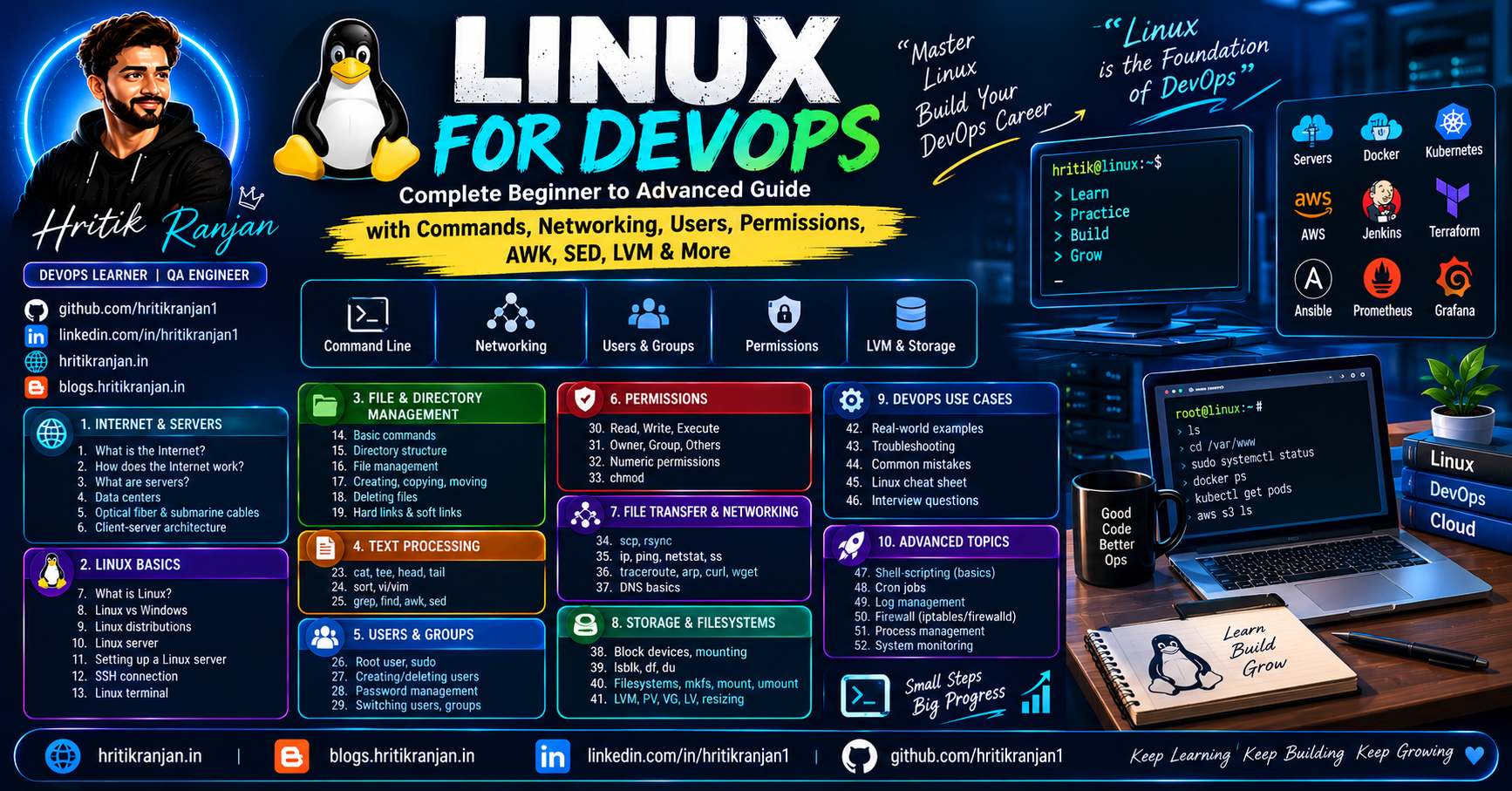
🐧 Linux for DevOps: Complete Beginner to Advanced Guide with Commands, Networking, Users, Permissions, AWK, SED, LVM & More
Linux is one of the most important technologies for anyone learning DevOps, Cloud, AWS, Docker, Kubernetes, CI/CD, or System Administration.
If you are starting your DevOps journey, you will quickly realize that many tools and platforms run on Linux.
For example:
AWS EC2
Docker
Kubernetes
Jenkins
Nginx
Apache
Terraform
Ansible
Prometheus
Grafana
Git
All of these commonly involve Linux environments.
But many beginners start learning DevOps tools directly without properly understanding Linux.
That creates problems later.
You may know how to create a Docker container, but if you don't understand:
Linux processes
File permissions
Users and groups
Networking
SSH
Disk management
Logs
File systems
Shell commands
troubleshooting becomes difficult.
This guide is designed to solve that problem.
We will start from the basics and gradually move toward advanced Linux commands and storage management, with practical examples throughout.
📌 What You Will Learn
In this complete Linux guide, we will cover:
What is the Internet?
How does the Internet work?
What are servers?
Data centers
Optical fiber and submarine cables
Client-server architecture
What is Linux?
Linux vs Windows
Linux distributions
Linux server
Setting up a Linux server
Connecting to a Linux server using SSH
Linux terminal
Basic Linux commands
Directory structure
File and directory management
Creating files
Copying files
Moving and renaming files
Deleting files
Hard links
Soft links
Text processing
catteeheadtailsortvi/vimUsers and groups
Root user
sudoCreating users
Password management
Switching users
Deleting users
Groups
Linux file permissions
Read, Write, Execute
Owner, Group, Others
Numeric permissions
chmodFile transfer
scprsyncLinux networking commands
ippingnetstatsstraceroutearpcurlwgetDNS basics
grepfindawksedLinux storage
Block devices
Mounting
lsblkdfduFilesystems
mkfsmountumountLVM
Physical Volume
Volume Group
Logical Volume
LVM resizing
DevOps use cases
Linux troubleshooting
Common mistakes
Linux cheat sheet
Linux interview questions
1. 🌐 What Is the Internet?
Before understanding Linux servers, let's understand something more fundamental:
What actually happens when you open a website?
Suppose you open:
https://example.com
Your browser needs to communicate with a server somewhere on the Internet.
A simplified flow is:
Your Computer
      |
      v
   Router
      |
      v
 Internet
      |
      v
 DNS
      |
      v
Web Server
      |
      v
 Website Response
      |
      v
 Your Browser
The Internet is essentially a massive network connecting computers and networks around the world.
2. 🌍 How Does the Internet Work?
The Internet is not one single machine.
It is a network of:
Computers
Servers
Routers
Switches
Data centers
Internet Service Providers
Fiber-optic networks
Submarine cables
Wireless networks
When you access a website, data travels through multiple networks before reaching the destination.
A simplified example:
Laptop
  ↓
Wi-Fi Router
  ↓
ISP
  ↓
Internet Backbone
  ↓
Data Center
  ↓
Server
The response travels back through the network.
3. 🌊 How Does Internet Data Travel Between Countries?
A common misconception is:
"Most Internet traffic travels through satellites."
In reality, a huge amount of international Internet traffic travels through fiber-optic submarine cables laid across the ocean floor.


These cables connect different continents.
For example:
Asia
 |
 | Submarine Cable
 |
Europe
or:
India
  |
  ↓
Undersea Cable
  |
  ↓
Singapore
  |
  ↓
United States
These fiber-optic cables transmit data using light.
4. 🏢 What Is a Data Center?
A data center is a facility containing computing infrastructure.
It can contain:
Servers
Storage systems
Network equipment
Power systems
Cooling systems
Security systems
A simplified data center:
             DATA CENTER

 ┌─────────────────────────────┐
 │                             │
 │  Server  Server  Server     │
 │                             │
 │  Server  Server  Server     │
 │                             │
 │  Storage  Network Equipment │
 │                             │
 └─────────────────────────────┘
Cloud providers such as AWS operate large numbers of data centers around the world.
5. 🖥️ What Is a Server?
A server is a computer that provides services or resources to other computers.
For example:
Web Server
Database Server
File Server
DNS Server
Mail Server
Application Server
Suppose you open a website.
Your browser acts as a client:
Client
  |
  | HTTP Request
  v
Web Server
  |
  | HTTP Response
  v
Client
This is called the client-server model.
6. 🐧 What Is Linux?
Linux is an open-source operating-system family built around the Linux kernel.
The Linux kernel is responsible for interacting with hardware and providing core operating-system functionality.
In everyday DevOps discussions, when people say "Linux," they often mean a complete Linux distribution such as:
Ubuntu
Debian
Rocky Linux
AlmaLinux
Fedora
RHEL
Amazon Linux
7. Linux Kernel vs Linux Distribution
These terms are often confused.
Linux Kernel
The kernel is the core component.
It manages things such as:
CPU
Memory
Processes
Devices
Networking
System calls
Linux Distribution
A distribution combines the Linux kernel with other software.
For example:
Ubuntu
   |
   +── Linux Kernel
   +── GNU utilities
   +── Package Manager
   +── Shell
   +── System utilities
   +── Applications
8. Why Is Linux Important for DevOps?
Linux is extremely important in DevOps because many:
Cloud servers
Containers
Kubernetes nodes
CI/CD systems
Web servers
Databases
Monitoring systems
run on Linux.
A typical DevOps environment might look like:
Developer
   ↓
GitHub
   ↓
Jenkins
   ↓
Linux Server
   ↓
Docker
   ↓
Kubernetes
   ↓
Application
So Linux knowledge becomes the foundation for many DevOps tasks.
9. Popular Linux Distributions
Some popular distributions include:
| Distribution | Common Usage |
|---|---|
| Ubuntu | Servers, cloud, beginners |
| Debian | Servers, stability |
| RHEL | Enterprise |
| Rocky Linux | Enterprise-compatible environments |
| AlmaLinux | Enterprise-compatible environments |
| Fedora | Modern Linux development |
| Amazon Linux | AWS environments |
For beginners, Ubuntu Server is a very good starting point.
10. Linux Server
A Linux server is simply a server running a Linux distribution.
For example:
AWS EC2
   ↓
Ubuntu Server
   ↓
Nginx
   ↓
Website
or:
AWS EC2
   ↓
Ubuntu
   ↓
Docker
   ↓
Application Container
11. Setting Up a Linux Server
You can practice Linux using:
Local Machine
Install Linux using:
VirtualBox
VMware
WSL
Cloud
Create a virtual server using:
AWS EC2
Azure VM
Google Cloud VM
For DevOps practice, cloud VMs are especially useful because they simulate real server environments.
12. Connecting to a Linux Server Using SSH
SSH stands for:
Secure Shell
It allows you to securely connect to a remote machine.
Example:
ssh username@server-ip
For example:
ssh ubuntu@203.0.113.10
With an SSH private key:
ssh -i my-key.pem ubuntu@203.0.113.10
The general flow is:
Your Laptop
     |
     | SSH
     ↓
Internet
     |
     ↓
Linux Server
13. Linux Terminal
After connecting to a Linux server, you normally interact with the system through the terminal.
Example:
ubuntu@server:~$
This is called a shell prompt.
You can execute commands such as:
pwd
ls
cd
mkdir
touch
cp
mv
rm
14. What Is a Shell?
A shell is a program that provides a command-line interface for interacting with the operating system.
Popular shells include:
Bash
Zsh
Fish
Bash is extremely common on Linux systems.
Example:
echo "Hello Linux"
The shell interprets the command and asks the operating system to perform the requested operation.
15. Linux Basic Commands
Let's start with the most important commands.
pwd
pwd means:
Print Working Directory
It tells you where you currently are.
pwd
Example:
/home/ubuntu
16. ls
ls displays files and directories.
ls
Example:
app
backup
file.txt
logs
Detailed listing
ls -l
Show hidden files
ls -a
Combine options
ls -la
17. Understanding ls -l
Example:
-rwxr-xr-- 1 ubuntu developers 1200 Sep 10 script.sh
This contains information about:
Permissions
Links
Owner
Group
Size
Date
Filename
We will understand permissions in detail later.
18. cd
cd means:
Change Directory
Example:
cd /var/log
Go back one directory:
cd ..
Go to home directory:
cd ~
Return to the previous directory:
cd -
19. mkdir
mkdir creates a directory.
mkdir projects
Create nested directories:
mkdir -p devops/docker/project
20. touch
touch can create an empty file.
touch app.txt
Create multiple files:
touch file1.txt file2.txt file3.txt
It can also update file timestamps when used on an existing file.
21. cat
cat displays file contents.
cat app.txt
Example:
Hello Linux
Welcome to DevOps
You can also concatenate files:
cat file1.txt file2.txt
22. cp
cp means:
Copy
Copy a file:
cp app.txt backup.txt
Copy to another directory:
cp app.txt /tmp/
Copy a directory recursively:
cp -r project /backup/
The -r option is required for recursively copying directories.
23. mv
mv means:
Move
Move a file:
mv app.txt /tmp/
It can also rename files.
mv old.txt new.txt
So:
mv = Move + Rename
24. rm
rm removes files.
rm app.txt
Remove a directory recursively:
rm -r project/
Force removal:
rm -rf project/
⚠️ Be extremely careful with:
rm -rf
A mistake in the path can delete important data.
25. Linux Directory Structure
Linux uses a hierarchical filesystem.


Important directories include:
/
├── bin
├── boot
├── dev
├── etc
├── home
├── lib
├── opt
├── proc
├── root
├── run
├── sbin
├── tmp
├── usr
└── var
26. Important Linux Directories
/
Root of the filesystem.
Everything starts here.
/home
Contains users' home directories.
Example:
/home/ubuntu
/home/devops
/home/testuser
/root
Home directory of the root user.
/etc
Contains system and application configuration files.
Examples:
/etc/ssh/
/etc/nginx/
/etc/hosts
/var
Contains variable data.
Common examples:
/var/log
/var/lib
/var/cache
Logs are commonly found under:
/var/log
/tmp
Temporary files.
/usr
Contains many user-space programs, libraries, and shared resources.
/opt
Often used for optional or third-party software.
/dev
Contains device files.
/proc
A virtual filesystem exposing process and kernel information.
27. Absolute vs Relative Paths
Absolute Path
Starts from /.
Example:
/home/ubuntu/project/app.py
Relative Path
Starts from the current directory.
Example:
project/app.py
Suppose you're currently at:
/home/ubuntu
Then:
project/app.py
refers to:
/home/ubuntu/project/app.py
28. Hidden Files
Linux files beginning with . are hidden.
Example:
.bashrc
.gitconfig
.ssh
View them:
ls -a
29. Hard Links and Soft Links
Linux supports two important types of links:
Hard Link
Soft Link / Symbolic Link


30. Soft Link
A symbolic link is similar to a shortcut.
Create one:
ln -s original.txt shortcut.txt
Example:
original.txt
     ↑
     |
shortcut.txt
If the original file is removed:
rm original.txt
the symbolic link normally becomes broken.
31. Hard Link
Create a hard link:
ln original.txt hardlink.txt
Both directory entries point to the same underlying file data/inode.
If the original filename is deleted:
rm original.txt
the data remains accessible through:
hardlink.txt
as long as another hard link still references the inode.
32. Hard Link vs Soft Link
| Feature | Hard Link | Soft Link |
|---|---|---|
| Points to | Same inode/data | Path to target |
ln |
Yes | No |
ln -s |
No | Yes |
| Can cross filesystems | Generally no | Yes |
| Works with directories | Normally no | Yes |
| Target deleted | Still works | Becomes broken |
33. Text Processing in Linux
Linux provides powerful commands for reading and processing text.
Important commands include:
cat
less
head
tail
sort
grep
awk
sed
cut
uniq
wc
tee
These commands are extremely useful for DevOps because logs and configuration files are often plain text.
34. head
head displays the beginning of a file.
head app.log
Show first 20 lines:
head -n 20 app.log
35. tail
tail displays the end of a file.
tail app.log
Show last 20 lines:
tail -n 20 app.log
36. tail -f
One of the most useful DevOps commands:
tail -f app.log
It continuously displays new lines added to the file.
This is extremely useful for monitoring logs.
Example:
Application started
User logged in
Database connected
Request received
As new log entries appear, you see them immediately.
37. sort
sort sorts lines.
Example file:
banana
apple
orange
Command:
sort fruits.txt
Output:
apple
banana
orange
Numeric sorting:
sort -n numbers.txt
Reverse:
sort -r fruits.txt
38. tee
tee reads input and writes it both to the terminal and a file.
Example:
echo "Hello DevOps" | tee output.txt
You see:
Hello DevOps
and the same content is written to:
output.txt
Append instead of overwrite:
echo "Another line" | tee -a output.txt
39. Linux vi / vim
vi is a terminal-based text editor.
Open a file:
vi file.txt
Important modes:
Normal Mode
Insert Mode
Command Mode
40. Basic vi Commands
Press:
i
to enter insert mode.
Type your content.
Press:
Esc
to return to normal mode.
Save:
:w
Save and quit:
:wq
Quit without saving:
:q!
41. Linux Users
Linux is a multi-user operating system.
Multiple users can exist on the same server.
Example:
root
ubuntu
devops
developer
jenkins
This is very important for server security.
42. Root User
The root user is the superuser.
Root has extensive privileges over the system.
For example, root can:
Create users
Delete users
Install software
Change permissions
Modify system configuration
Stop services
Access protected files
Because root has powerful privileges, you should avoid using it unnecessarily.
43. sudo
sudo allows an authorized user to execute a command with elevated privileges.
Example:
sudo apt update
Instead of switching permanently to root, you can run one command with elevated privileges.
Example:
sudo systemctl restart nginx
44. Creating a User
Create a user:
sudo useradd devops
Create a home directory as well:
sudo useradd -m devops
45. Setting a Password
sudo passwd devops
Linux asks you to enter the password.
46. Switching Users
Use:
su devops
Switch to another user with a login environment:
su - devops
The - is important because it starts a login shell and loads the target user's environment appropriately.
47. Delete a User
sudo userdel devops
Delete the user and their home directory:
sudo userdel -r devops
Be careful because deleting the home directory removes its contents.
48. Linux Groups
Groups are used to organize users and permissions.
Example:
Developers
QA
DevOps
Database
Admins
Create a group:
sudo groupadd devops
Add a user:
sudo gpasswd -a devopsuser devops
On many modern Linux distributions, you will also commonly see:
sudo usermod -aG devops devopsuser
The -aG form is especially important because -a preserves the user's existing supplementary groups.
49. Remove a Group
sudo groupdel devops
50. Check Current User
whoami
Example:
ubuntu
51. Check User Information
id
Example:
uid=1000(ubuntu) gid=1000(ubuntu) groups=1000(ubuntu),27(sudo)
This tells you:
UID
GID
Groups
52. Linux File Permissions
One of the most important Linux concepts for DevOps is:
File permissions
Every file and directory has permissions.
The three basic permissions are:
r = Read
w = Write
x = Execute
And permissions are generally defined for:
Owner
Group
Others
53. Understanding Permissions
Suppose:
ls -l script.sh
returns:
-rwxr-xr--
Break it down:
- rwx r-x r--
  │   │   │
  │   │   └── Others
  │   └────── Group
  └────────── Owner
54. Permission Meaning
Read
r = 4
Allows reading the file.
Write
w = 2
Allows modifying the file.
Execute
x = 1
Allows execution.
55. Numeric Permissions
Add the values:
Read    = 4
Write   = 2
Execute = 1
Therefore:
rwx = 4 + 2 + 1 = 7
rw- = 4 + 2     = 6
r-x = 4 + 1     = 5
r-- = 4         = 4
56. Permission 755
When you see:
chmod 755 script.sh
it means:
Owner  = 7 = rwx
Group  = 5 = r-x
Others = 5 = r-x
So:
755
│││
││└── Others
│└─── Group
└──── Owner
57. Permission 644
644
means:
Owner  → rw-
Group  → r--
Others → r--
This is commonly appropriate for ordinary readable files.
58. chmod
chmod means:
Change Mode
Example:
chmod 755 script.sh
Make a script executable:
chmod +x script.sh
Remove write permission for others:
chmod o-w file.txt
59. Change Owner
The chown command changes file ownership.
Example:
sudo chown ubuntu app.txt
Change owner and group:
sudo chown ubuntu:devops app.txt
60. File Transfer in Linux
DevOps engineers frequently need to transfer files between machines.
Two important tools are:
scp
rsync
61. scp
scp means:
Secure Copy
Copy local file to remote server:
scp app.txt ubuntu@server:/home/ubuntu/
Using an SSH key:
scp -i my-key.pem app.txt ubuntu@server:/home/ubuntu/
Copy a remote file to your local machine:
scp ubuntu@server:/home/ubuntu/app.txt .
62. Copy a Directory with SCP
Use:
scp -r project/ ubuntu@server:/home/ubuntu/
The -r option recursively copies directories.
63. rsync
rsync is useful for synchronizing files and directories efficiently.
Example:
rsync -av project/ ubuntu@server:/home/ubuntu/project/
Common options:
-a = archive mode
-v = verbose
-z = compression
Example:
rsync -avz project/ ubuntu@server:/home/ubuntu/project/
64. SCP vs Rsync
| SCP | Rsync |
|---|---|
| Simple file copying | Synchronization |
| Easy to understand | More efficient for repeated transfers |
| Transfers files | Transfers changed data efficiently |
| Good for simple tasks | Excellent for backups/deployments |
65. Linux Networking
Networking knowledge is extremely important for DevOps.
You should understand:
IP Address
MAC Address
Port
DNS
Gateway
Routing
TCP
UDP
HTTP
HTTPS
SSH
66. ip
The modern command for network configuration and inspection is:
ip
Show addresses:
ip addr
Show routes:
ip route
Show links:
ip link
67. ping
ping checks basic network reachability using ICMP.
Example:
ping google.com
or:
ping 8.8.8.8
Example:
64 bytes from ...
This can help determine whether a destination is reachable, although a failed ping does not necessarily mean a service is unavailable because ICMP may be blocked.
68. ss
ss is a modern tool for inspecting sockets and network connections.
Example:
ss -tuln
This can show listening TCP/UDP sockets.
Common options:
-t = TCP
-u = UDP
-l = listening
-n = don't resolve service names
69. netstat
You may still encounter:
netstat
Example:
netstat -tulnp
However, on many modern Linux systems, ss is preferred.
70. Understanding Ports
A server can run multiple network services.
For example:
SSH      → 22
HTTP     → 80
HTTPS    → 443
Jenkins  → 8080
Example:
Client
  |
  | TCP 443
  ↓
Web Server
A port identifies a network service endpoint.
71. traceroute
traceroute shows the network hops between your machine and a destination.
Example:
traceroute google.com
Conceptually:
Your Computer
     ↓
Router
     ↓
ISP
     ↓
Router
     ↓
Router
     ↓
Destination
This is useful for investigating routing and latency problems.
72. arp
ARP stands for:
Address Resolution Protocol
In IPv4 local networks, ARP helps map an IP address to a MAC address.
You may encounter:
arp -a
On modern Linux, similar information can be inspected with:
ip neigh
Example:
192.168.1.10 → MAC Address
73. curl
curl is one of the most important commands for DevOps.
It transfers data using URLs and supports protocols such as HTTP and HTTPS.
Example:
curl https://example.com
Get only response headers:
curl -I https://example.com
Test an API:
curl https://api.example.com/users
74. curl POST Request
Example:
curl -X POST https://api.example.com/users \
     -H "Content-Type: application/json" \
     -d '{"name":"Hritik"}'
This is extremely useful when testing REST APIs from a server.
75. curl + jq
APIs often return JSON.
Example:
curl https://api.example.com/users
You can pipe the output into:
jq
Example:
curl https://api.example.com/users | jq
This makes JSON easier to read.
76. wget
wget is commonly used for downloading files.
Example:
wget https://example.com/file.zip
Download with a specific name:
wget -O application.zip https://example.com/file.zip
77. grep
grep searches text.
Suppose:
application.log
contains:
INFO Application started
ERROR Database connection failed
INFO User logged in
ERROR API request failed
Search for errors:
grep "ERROR" application.log
78. Useful grep Options
Case-insensitive:
grep -i "error" application.log
Show line numbers:
grep -n "ERROR" application.log
Recursive search:
grep -r "database" /var/log/
Invert match:
grep -v "INFO" application.log
79. find
find searches for files and directories.
Find a file:
find /home -name "app.txt"
Find all .log files:
find /var/log -name "*.log"
Find files larger than 100 MB:
find / -type f -size +100M
Find files modified recently:
find /var/log -type f -mtime -1
80. grep vs find
Remember:
find → Find files/directories

grep → Search inside text
Example:
find /var/log -name "*.log"
finds log files.
grep "ERROR" application.log
searches inside a log file.
81. AWK
awk is one of the most powerful Linux text-processing tools.
It is particularly useful for:
Columns
Structured text
Reports
Logs
CSV/TSV-like data
Command output
Example:
Alice  DevOps  50000
Bob    QA      45000
John   Cloud   60000
Suppose we want the first column:
awk '{print $1}' employees.txt
Output:
Alice
Bob
John
82. AWK Columns
For:
Alice DevOps 50000
the fields are:
$1 → Alice
$2 → DevOps
$3 → 50000
$0 represents the complete line.
Example:
awk '{print $1, $3}' employees.txt
Output:
Alice 50000
Bob 45000
John 60000
83. AWK with Conditions
Example:
awk '$3 > 50000 {print $1}' employees.txt
This prints employees whose third column is greater than 50000.
84. SED
sed stands for:
Stream Editor
It is useful for searching, replacing, filtering, and transforming text.
Suppose:
Hello World
Hello Linux
Replace Hello with Hi:
sed 's/Hello/Hi/g' file.txt
Output:
Hi World
Hi Linux
85. sed Editing a File
By default:
sed 's/old/new/g' file.txt
prints the modified content but doesn't modify the original file.
To edit the file in place on GNU/Linux:
sed -i 's/old/new/g' file.txt
Be careful when using -i because it modifies the original file.
86. AWK vs SED
A simple way to remember:
AWK
 ↓
Work with fields/data

SED
 ↓
Modify/transform text
Example:
AWK → Extract column 3

SED → Replace "dev" with "prod"
Both are extremely useful in DevOps scripts.
87. Linux Storage
Now let's move into another important DevOps topic:
Storage management
Linux servers need storage for:
Applications
Databases
Logs
Docker images
Backups
Configuration
User data
88. What Is a Disk?
A disk is physical or virtual storage.
Example:
Server
 |
 +── Disk 1
 |
 +── Disk 2
 |
 +── Disk 3
In cloud environments, these may be virtual block-storage devices.
89. What Is a Block Device?
A block device provides storage in blocks.
Examples include:
/dev/sda
/dev/sdb
/dev/nvme0n1
These names depend on the hardware, VM, and Linux environment.
90. lsblk
lsblk displays block devices.
lsblk
Example:
NAME        SIZE TYPE MOUNTPOINTS
nvme0n1      30G disk
├─nvme0n1p1  29G part /
└─nvme0n1p2   1G part /boot
nvme1n1      50G disk
This helps you understand:
Disk
 ↓
Partition
 ↓
Filesystem
 ↓
Mount Point
91. What Is a Filesystem?
A filesystem organizes data on a storage device.
Common Linux filesystems include:
ext4
XFS
Btrfs
For example:
Disk
 ↓
Partition
 ↓
ext4 filesystem
 ↓
/data
92. df
df displays filesystem disk usage.
Human-readable format:
df -h
Example:
Filesystem      Size  Used Avail Use%
/dev/root        30G   15G   14G  52%
This tells you how much filesystem space is:
Total
Used
Available
93. du
du shows disk usage of files/directories.
Example:
du -sh /var/log
Find which directories consume space:
du -h --max-depth=1 /var
This is useful when a server's disk is filling up.
94. mkfs
mkfs creates a filesystem on a device.
For example:
sudo mkfs.ext4 /dev/sdb
This formats the device with an ext4 filesystem.
⚠️ Important: Formatting a device can destroy existing data. Always verify the device name before using mkfs.
95. Mounting
A filesystem must be mounted to make its contents accessible through the Linux directory tree.
Example:
sudo mkdir /data
Mount:
sudo mount /dev/sdb /data
Now:
cd /data
can access the mounted filesystem.
Conceptually:
/dev/sdb
    |
    v
Filesystem
    |
    v
/data
96. umount
To safely unmount:
sudo umount /data
Notice the command is:
umount
not:
unmount
97. Temporary vs Persistent Mount
A command such as:
mount /dev/sdb /data
may not automatically make the mount persistent across reboot.
For persistent mounts, Linux commonly uses:
/etc/fstab
Example entry:
UUID=xxxx-xxxx /data ext4 defaults 0 2
Using UUIDs is generally safer than relying on device names that may vary.
98. What Is LVM?
LVM stands for:
Logical Volume Manager
LVM provides a flexible way to manage storage.
Without LVM, storage might look like:
Disk
 ↓
Partition
 ↓
Filesystem
 ↓
Mount
With LVM:
Disk
 ↓
Physical Volume
 ↓
Volume Group
 ↓
Logical Volume
 ↓
Filesystem
 ↓
Mount Point


99. LVM Components
There are three major components.
PV
 ↓
VG
 ↓
LV
Meaning:
PV = Physical Volume

VG = Volume Group

LV = Logical Volume
100. Physical Volume
A Physical Volume (PV) is a storage device or partition prepared for LVM.
Example:
sudo pvcreate /dev/sdb
Check:
sudo pvs
101. Volume Group
A Volume Group (VG) combines one or more physical volumes into a storage pool.
Example:
sudo vgcreate devops-vg /dev/sdb
Check:
sudo vgs
Conceptually:
/dev/sdb
/dev/sdc
    |
    v
devops-vg
102. Logical Volume
A Logical Volume is created from free space in a Volume Group.
Example:
sudo lvcreate -L 10G -n data-lv devops-vg
Now:
PV
 ↓
VG
 ↓
LV
103. Format the Logical Volume
Create an ext4 filesystem:
sudo mkfs.ext4 /dev/devops-vg/data-lv
Create mount point:
sudo mkdir /data
Mount:
sudo mount /dev/devops-vg/data-lv /data
104. Complete LVM Flow
The complete process is:
Physical Disk
     |
     v
Physical Volume
     |
     v
Volume Group
     |
     v
Logical Volume
     |
     v
Filesystem
     |
     v
Mount Point
Example:
/dev/sdb
   ↓
pvcreate
   ↓
PV
   ↓
vgcreate
   ↓
devops-vg
   ↓
lvcreate
   ↓
data-lv
   ↓
mkfs.ext4
   ↓
/data
105. Why Use LVM?
The major advantage is flexibility.
Suppose:
/data = 10 GB
and later your application requires:
/data = 20 GB
With appropriate free space and filesystem support, you can extend the logical volume and filesystem.
For example:
sudo lvextend -L +10G /dev/devops-vg/data-lv
Then resize the filesystem.
For ext4:
sudo resize2fs /dev/devops-vg/data-lv
For XFS, filesystem growth is normally performed using xfs_growfs on the mounted filesystem.
106. LVM Advantages
Flexible Storage
Logical volumes can be resized.
Storage Pooling
Multiple physical devices can contribute to a volume group.
Easier Management
Storage can be managed logically rather than being tightly tied to individual partitions.
Snapshots
LVM supports snapshots, which can be useful for certain backup and testing scenarios.
107. LVM Important Commands
Physical Volumes
pvcreate
pvs
pvdisplay
Volume Groups
vgcreate
vgs
vgdisplay
Logical Volumes
lvcreate
lvs
lvdisplay
lvextend
lvreduce
Filesystems
mkfs
mount
umount
df
108. Linux Logs
Logs are extremely important for DevOps troubleshooting.
Common location:
/var/log
Examples can include:
/var/log/syslog
/var/log/auth.log
The exact files depend on your Linux distribution and logging system.
109. Monitoring Logs
Use:
tail -f /var/log/syslog
Search errors:
grep -i "error" /var/log/syslog
Find recent entries:
tail -n 100 /var/log/syslog
This is a common troubleshooting workflow.
110. Linux Troubleshooting Workflow
Suppose an application is not working.
Don't randomly run commands.
Follow a structured approach.
Step 1 — Check the process
ps aux
Step 2 — Check listening ports
ss -tuln
Step 3 — Check logs
tail -f application.log
Step 4 — Check disk
df -h
Step 5 — Check memory
free -h
Step 6 — Check CPU/processes
top
or:
htop
if installed.
Step 7 — Test the service
curl http://localhost:8080
This systematic approach is much better than guessing.
111. Useful Linux System Commands
Check memory
free -h
Check CPU/processes
top
Check hostname
hostname
Check OS information
cat /etc/os-release
Check kernel
uname -r
Check uptime
uptime
Check current date
date
112. Linux + DevOps: Real-World Example
Imagine you're deploying a Dockerized application on AWS EC2.
Your architecture might look like:
Developer
   |
   v
GitHub
   |
   v
Jenkins
   |
   v
AWS EC2
   |
   +── Linux
   |
   +── Docker
   |
   +── Nginx
   |
   +── Application
   |
   +── Logs
   |
   +── Storage
You might use Linux commands to:
Check disk
Check memory
Inspect logs
Change permissions
Create users
Transfer files
Check ports
Test APIs
Manage services
Mount storage
Troubleshoot applications
That's why Linux is fundamental to DevOps.
113. Real DevOps Troubleshooting Example
Suppose your website is not opening.
You could follow:
Website Not Working
       |
       v
Is server reachable?
       |
      ping
       |
       v
Is application running?
       |
      ps
       |
       v
Is port listening?
       |
      ss
       |
       v
Is firewall/security group correct?
       |
       v
Check application logs
       |
      grep
       |
       v
Test locally
       |
      curl
This is how Linux knowledge directly helps DevOps engineers.
114. Most Important Linux Commands Cheat Sheet
| Category | Commands |
|---|---|
| Navigation | pwd, ls, cd |
| Files | touch, cp, mv, rm |
| Directories | mkdir, rmdir |
| Reading | cat, less, head, tail |
| Editing | vi, vim |
| Text | grep, awk, sed, sort, tee |
| Search | find, locate |
| Users | useradd, passwd, userdel, su |
| Groups | groupadd, gpasswd, groupdel |
| Permissions | chmod, chown, chgrp |
| Networking | ip, ping, ss, traceroute |
| HTTP/API | curl, wget |
| Transfer | scp, rsync |
| Storage | lsblk, df, du, mount, umount |
| LVM | pvcreate, vgcreate, lvcreate, pvs, vgs, lvs |
| System | uname, free, top, uptime |
| Services | systemctl, journalctl |
115. Linux Commands You Should Practice
If you're a beginner, don't just read these commands.
Open a Linux terminal and practice.
Day 1
pwd
ls
cd
mkdir
touch
cat
cp
mv
rm
Day 2
head
tail
sort
tee
grep
find
Day 3
useradd
passwd
su
id
groupadd
gpasswd
Day 4
chmod
chown
ls -l
Day 5
ip
ping
ss
curl
wget
scp
Day 6
awk
sed
Day 7
lsblk
df -h
du -sh
mount
umount
Then move to:
LVM
Docker
Jenkins
Kubernetes
AWS
116. Linux Interview Questions for Beginners
Q1. What is Linux?
Linux is an open-source operating-system ecosystem built around the Linux kernel and distributed through distributions such as Ubuntu, Debian, and RHEL.
Q2. What is the Linux kernel?
The kernel is the core component responsible for managing hardware resources and providing essential services to applications.
Q3. What is a Linux distribution?
A distribution packages the Linux kernel with system utilities, libraries, package-management tools, and applications.
Q4. What is SSH?
SSH is a secure protocol used to remotely access and manage systems.
Q5. What is the root user?
Root is the Linux superuser with extensive administrative privileges.
Q6. What is sudo?
sudo allows an authorized user to execute commands with elevated privileges.
Q7. What is chmod?
chmod changes file or directory permissions.
Q8. What does 755 mean?
Owner  → rwx
Group  → r-x
Others → r-x
Q9. Hard link vs soft link?
A hard link references the same inode/data, while a symbolic link references the target through a pathname.
Q10. What is grep?
grep searches text for matching patterns.
Q11. What is AWK?
AWK is a text-processing language particularly useful for processing structured, field-based data.
Q12. What is SED?
SED is a stream editor used for filtering and transforming text.
Q13. What is LVM?
LVM stands for Logical Volume Manager and provides flexible logical storage management.
Q14. What are PV, VG and LV?
PV = Physical Volume
VG = Volume Group
LV = Logical Volume
Q15. What does df -h do?
It displays filesystem disk usage in a human-readable format.
Q16. What does lsblk do?
It displays block devices and their relationships, partitions, and mount points.
117. 🎯 Linux for DevOps — The Big Picture
If you're learning DevOps, think about Linux like this:
                    LINUX
                      |
       +--------------+--------------+
       |              |              |
     Files          Users         Networking
       |              |              |
    Permissions      sudo           IP
       |              |              |
     Storage         Groups          Ports
       |                             |
      LVM                            DNS
       |                             |
       +-------------+---------------+
                     |
                     v
                 Processes
                     |
                     v
                  Services
                     |
                     v
                   Logs
                     |
                     v
                Troubleshooting
                     |
                     v
                  DEVOPS
Linux isn't just another topic in DevOps.
It is the foundation on which many DevOps tools operate.
118. 🚀 Linux → Docker → Jenkins → Kubernetes
Once you understand Linux, your DevOps learning becomes much easier.
A typical learning path is:
Linux
  ↓
Git & GitHub
  ↓
Networking
  ↓
AWS
  ↓
Docker
  ↓
Jenkins
  ↓
Kubernetes
  ↓
Terraform
  ↓
Monitoring
  ↓
Advanced DevOps
For example, when learning Docker, you will encounter:
Linux processes
Namespaces
cgroups
Filesystems
Networking
Permissions
Volumes
When learning Kubernetes, you'll encounter:
Linux nodes
Processes
Networking
Storage
Containers
Services
When learning Jenkins:
Linux servers
SSH
Users
Permissions
Processes
Logs
Networking
So Linux knowledge keeps appearing everywhere.
119. 🧠 The Most Important Linux Concepts for DevOps
If you don't have time to learn every Linux command immediately, prioritize these topics:
⭐ Must Know
1. Files & directories
2. Permissions
3. Users & groups
4. SSH
5. Processes
6. Services
7. Networking
8. Logs
9. Disk management
10. Shell scripting
⭐ Advanced
11. AWK
12. SED
13. LVM
14. System troubleshooting
15. Performance monitoring
16. Networking troubleshooting
17. Bash scripting
18. Cron
19. Systemd
20. Security
120. 🏆 Final Linux DevOps Cheat Sheet
Keep this section bookmarked.
# Current directory
pwd

# List files
ls
ls -la

# Change directory
cd /path

# Create directory
mkdir project

# Create file
touch file.txt

# Read file
cat file.txt

# Copy
cp file.txt backup.txt

# Copy directory
cp -r project backup/

# Move / Rename
mv old.txt new.txt

# Delete
rm file.txt

# Delete directory
rm -rf project/

# Search text
grep "error" app.log

# Find files
find /var/log -name "*.log"

# First lines
head file.txt

# Last lines
tail file.txt

# Follow logs
tail -f app.log

# Sort
sort file.txt

# Text processing
awk '{print $1}' file.txt

# Replace text
sed 's/old/new/g' file.txt

# Create symbolic link
ln -s original.txt link.txt

# Create hard link
ln original.txt hardlink.txt

# Current user
whoami

# User information
id

# Create user
sudo useradd -m devops

# Password
sudo passwd devops

# Switch user
su - devops

# Create group
sudo groupadd devops

# Add user to group
sudo usermod -aG devops devops

# Permissions
chmod 755 script.sh

# Ownership
sudo chown user:group file.txt

# IP information
ip addr

# Routing
ip route

# Test connectivity
ping google.com

# Listening ports
ss -tuln

# HTTP request
curl https://example.com

# Download
wget https://example.com/file.zip

# Copy remote file
scp file.txt user@server:/tmp/

# Synchronize
rsync -av project/ user@server:/tmp/project/

# Block devices
lsblk

# Disk usage
df -h

# Directory size
du -sh /var/log

# Mount
sudo mount /dev/sdb /data

# Unmount
sudo umount /data

# LVM
sudo pvcreate /dev/sdb
sudo vgcreate devops-vg /dev/sdb
sudo lvcreate -L 10G -n data-lv devops-vg
sudo mkfs.ext4 /dev/devops-vg/data-lv
sudo mount /dev/devops-vg/data-lv /data
🎯 Conclusion
Linux is one of the most important foundations for a DevOps engineer.
You don't need to memorize hundreds of commands on day one.
Instead, understand what problem each command solves.
For example:
Need to find a file?
        ↓
      find

Need to search inside a file?
        ↓
      grep

Need to process columns?
        ↓
      awk

Need to replace text?
        ↓
      sed

Need to check disk?
        ↓
      df / du

Need to check disks?
        ↓
      lsblk

Need to check network?
        ↓
      ip / ping / ss

Need to transfer files?
        ↓
      scp / rsync

Need to manage permissions?
        ↓
      chmod / chown

Need flexible storage?
        ↓
      LVM
The goal is not to become a Linux command memorization machine.
The goal is to become comfortable enough with Linux that when a Jenkins pipeline fails, Docker container doesn't start, EC2 server runs out of disk, application port isn't reachable, or logs show an error, you know where to look and which commands to use.
Once you are comfortable with Linux fundamentals, technologies such as Docker, Jenkins, Kubernetes, AWS, Terraform and Ansible become much easier to understand.
🚀 What's Next?
If you're following this as a DevOps learning series, the next logical topics are:
Linux
  ↓
Git & GitHub
  ↓
AWS Fundamentals
  ↓
Docker
  ↓
Jenkins
  ↓
Kubernetes
  ↓
Terraform
  ↓
Ansible
  ↓
Prometheus + Grafana
  ↓
Advanced DevOps Projects
Linux is not just a prerequisite for DevOps — it is one of the core skills you will continuously use throughout your DevOps career.
📚 Recommended Practice Project
Don't stop after reading this article.
Create an Ubuntu AWS EC2 server and practice:
✅ SSH
✅ Users
✅ Groups
✅ Permissions
✅ Files/directories
✅ Nginx
✅ Logs
✅ Networking
✅ SCP/rsync
✅ Disk management
✅ LVM
✅ Bash scripting
Then deploy a simple application on the server.
That practical experience will teach you far more than memorizing Linux commands.

🚀 Complete Learning & Career Resources | 2027–2028
A curated collection of learning resources for AI, Data Analytics, Python, Data Engineering, Cybersecurity, Cloud, Networking, Finance, Digital Marketing, Project Management, DevOps and Generative AI.
📚 Learn → 🧪 Practice → 🛠️ Build → 🐙 Share → 🚀 Grow









🌟 About This Repository
Welcome to the Complete Learning & Career Resources Repository! 🚀
This repository is designed as a centralized learning hub for students, developers, QA engineers, DevOps engineers, cloud learners, cybersecurity enthusiasts, data professionals, project managers, business professionals and anyone interested in continuous learning.
The goal is simple:
Learn → Practice → Build → Document → Share → Grow
Instead of searching for useful resources again and again, this repository brings them together in one place.
🎯 What You Will Find Here
🤖 Artificial Intelligence
🧠 Generative AI
📊 Data Analytics
🐍 Python
⚙️ Data Engineering
☁️ Cloud Computing
🌐 Computer Networking
🔐 Cybersecurity
⚙️ DevOps
📋 Project Management
💰 Finance
📈 Digital Marketing
🧩 Business Analysis
🚀 Career Development
🎓 Professional Learning
🛠️ Project Ideas
📚 Learning Roadmaps
📊 Repository Overview
| Category | Resources |
|---|---|
| 🤖 AI Courses | 15 |
| 🔵 Google Courses | 15 |
| 🟣 IBM Courses | 10 |
| 🔥 Best Courses 2027–2028 | 21 |
| 🌟 Learning & Career Resources | 14 |
| 📖 Personal Resources | 4+ |
📚 Table of Contents
🤖 AI Courses
🚀 Explore AI fundamentals, Python, AI infrastructure, Generative AI, AI governance and specialized AI applications.
| # | Course | Link |
|---|---|---|
| 1 | AI For Everyone | Start Course ↗ |
| 2 | AI Python for Beginners | Start Course ↗ |
| 3 | AI Infrastructure and Operations Fundamentals | Start Course ↗ |
| 4 | Generative AI for Human Resources (HR) Professionals | Start Course ↗ |
| 5 | AI Fundamentals | Start Course ↗ |
| 6 | AI for Healthcare | Start Course ↗ |
| 7 | AI Applications in Accounting and Finance | Start Course ↗ |
| 8 | AI Governance and Privacy Professional Certification (AIGP) | Start Course ↗ |
| 9 | Ethics and Governance in the Age of Generative AI | Start Course ↗ |
| 10 | Hands-on quantum error correction with Google Quantum AI | Start Course ↗ |
| 11 | AI-Powered Higher Education | Start Course ↗ |
| 12 | Modern Project Leadership: Agile, AI, and Beyond | Start Course ↗ |
| 13 | AI-Powered Business Analysis: Excel, KPIs & GenAI | Start Course ↗ |
| 14 | AI in Law: Research, Risk, and Legal Drafting | Start Course ↗ |
| 15 | Generative AI for Project Managers | Start Course ↗ |
🔵 Google Courses
🌐 Explore Data Analytics, AI, Cybersecurity, Networking, Cloud, Digital Marketing and Project Management.
| # | Course | Link |
|---|---|---|
| 1 | Foundations: Data, Data, Everywhere | Start Course ↗ |
| 2 | Ask Questions to Make Data-Driven Decisions | Start Course ↗ |
| 3 | Prepare Data for Exploration | Start Course ↗ |
| 4 | Agile Project Management | Start Course ↗ |
| 5 | Project Initiation: Starting a Successful Project | Start Course ↗ |
| 6 | AI Fundamentals | Start Course ↗ |
| 7 | Foundations of Digital Marketing and E-commerce | Start Course ↗ |
| 8 | Play It Safe: Manage Security Risks | Start Course ↗ |
| 9 | The Bits and Bytes of Computer Networking | Start Course ↗ |
| 10 | Analyze Data to Answer Questions | Start Course ↗ |
| 11 | Automate Cybersecurity Tasks with Python | Start Course ↗ |
| 12 | Architecting with Google Compute Engine | Start Course ↗ |
| 13 | AI for Writing and Communicating | Start Course ↗ |
| 14 | From Likes to Leads: Interact with Customers Online | Start Course ↗ |
| 15 | AI for Data Analysis | Start Course ↗ |
🟣 IBM Courses
💙 Explore SQL, Python, Data Analytics, Deep Learning, RAG and Generative AI resources.
| # | Course | Link |
|---|---|---|
| 1 | Databases and SQL for Data Science with Python | Start Course ↗ |
| 2 | RAG and Agentic AI Capstone Project | Start Course ↗ |
| 3 | Excel Basics for Data Analysis | Start Course ↗ |
| 4 | Introduction to Data Analytics | Start Course ↗ |
| 5 | Data Visualization and Dashboards with Excel and Cognos | Start Course ↗ |
| 6 | IBM AI Foundations for Business | Start Course ↗ |
| 7 | AI Capstone Project with Deep Learning | Start Course ↗ |
| 8 | Python Project for Data Engineering | Start Course ↗ |
| 9 | Building Generative AI-Powered Applications with Python | Start Course ↗ |
| 10 | Vector Databases for RAG: An Introduction | Start Course ↗ |
🔥 Best Courses 2027–2028
🎯 A broader collection covering AI, Data, Python, Finance, Cybersecurity, Marketing, Networking, Management and Data Engineering.
| # | Course | Link |
|---|---|---|
| 1 | AI For Everyone | Start Course ↗ |
| 2 | Foundations: Data, Data, Everywhere | Start Course ↗ |
| 3 | Ask Questions to Make Data-Driven Decisions | Start Course ↗ |
| 4 | Prepare Data for Exploration | Start Course ↗ |
| 5 | Financial Markets | Start Course ↗ |
| 6 | Agile Project Management | Start Course ↗ |
| 7 | Play It Safe: Manage Security Risks | Start Course ↗ |
| 8 | Project Initiation: Starting a Successful Project | Start Course ↗ |
| 9 | AI Fundamentals | Start Course ↗ |
| 10 | Analyze Data to Answer Questions | Start Course ↗ |
| 11 | Foundations of Digital Marketing and E-commerce | Start Course ↗ |
| 12 | The Bits and Bytes of Computer Networking | Start Course ↗ |
| 13 | Sequence Models | Start Course ↗ |
| 14 | Federal Taxation I: Individuals, Employees, and Sole Proprietors | Start Course ↗ |
| 15 | Designing the Organization | Start Course ↗ |
| 16 | Game Theory | Start Course ↗ |
| 17 | Using Python to Access Web Data | Start Course ↗ |
| 18 | Viral Marketing and How to Craft Contagious Content | Start Course ↗ |
| 19 | Python Project for Data Engineering | Start Course ↗ |
| 20 | Value Chain Management | Start Course ↗ |
| 21 | Applying Data Analytics in Finance | Start Course ↗ |
🌟 Learning & Career Resources
💡 Additional resources for learning, career development, language learning, hosting, education and professional growth.
🗺️ Recommended Learning Roadmaps
Choose one roadmap according to your career goal. You don't need to learn everything at once.
🤖 AI Roadmap
AI Fundamentals
      ↓
Python Basics
      ↓
Mathematics & Statistics
      ↓
Data Fundamentals
      ↓
Machine Learning
      ↓
Deep Learning
      ↓
Generative AI
      ↓
Prompt Engineering
      ↓
RAG
      ↓
Vector Databases
      ↓
Agentic AI
      ↓
AI Applications
      ↓
Real-World Projects
      ↓
GitHub Portfolio

🔖 Tags
#Linux #DevOps #LinuxForDevOps #DevOpsForBeginners #LinuxCommands #AWS #CloudComputing #Docker #Jenkins #Kubernetes #LinuxAdministration #SystemAdministration #DevOpsLearning #LVM #LinuxNetworking
About the author
- 👋 Hi, I’m Hritik Ranjan — a B.Tech CSE student and a passionate tech enthusiast focused on Quality Engineering, AI/ML, Cybersecurity, and DevOps. 💡 I enjoy building and testing scalable, secure, and intelligent systems that solve real-world problems. My expertise and interests include: 🔹 Quality Assurance & Testing Hands-on experience in manual and automation testing using Selenium & Java, ensuring high-quality and reliable applications. 🔹 Artificial Intelligence & Machine Learning Exploring advanced algorithms and developing intelligent systems for practical use cases. 🔹 Cybersecurity Focused on vulnerability assessment, security testing, and system hardening. 🔹 Web Development Building responsive and user-friendly applications using modern technologies. 🔹 Data Science Analyzing complex data to extract actionable insights. 💼 Key Projects: 🚀 Blindness Detection System Applied computer vision techniques to detect blindness-related conditions. 🚀 AI-Powered Rail Madad Enhancement Developed an intelligent complaint management system to improve railway customer service. 🚀 Interactive Applications Built multiple projects like quiz apps, calculators, and productivity tools. 🌱 I’m continuously learning and improving my skills in DevOps, Cloud, and Automation to become a well-rounded engineer. 🤝 Open to collaborations, internships, and opportunities in QA, DevOps, AI/ML, and Cybersecurity. 📫 Let’s connect: hritikranjan1408@gmail.com
Comments
Join the discussionNo comments yet. Be the first to comment.