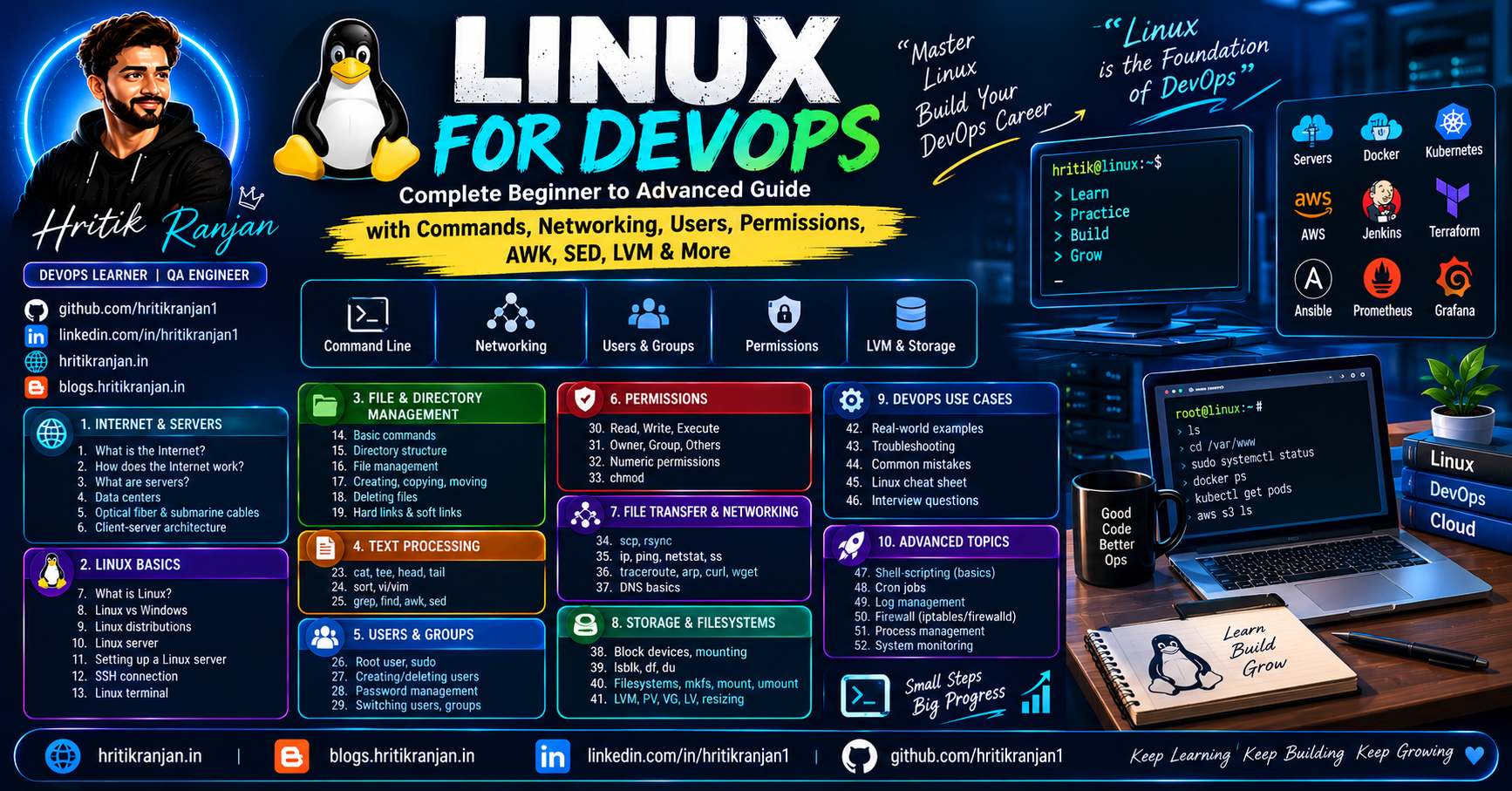

🐧 Week 9.3 – Linux Zero to Hero | Complete Linux Guide
Master Linux Architecture, User Management, File Systems, Permissions, Networking, Monitoring, and Storage Management


🐧 Fundamentals of Linux | Beginner's Complete Guide to Linux
📘 Introduction to Linux
Linux is one of the most widely used operating systems in the world. It powers servers, cloud platforms, supercomputers, Android devices, networking equipment, and modern DevOps environments.
Whether you want to become a DevOps Engineer, Cloud Engineer, System Administrator, Cybersecurity Professional, or Software Developer, learning Linux is one of the most important skills you can acquire.
In this guide, we'll understand the fundamentals of Linux in simple language and learn why Linux is everywhere in modern IT infrastructure.
🌟 Why Should You Learn Linux?
Most modern technologies run on Linux.
Examples include:
AWS EC2 Servers
Google Cloud
Microsoft Azure
Kubernetes Clusters
Docker Containers
Jenkins Servers
Nginx
Apache
Databases
Android Devices
💡 Fun Fact
More than 90% of cloud servers worldwide run Linux.
This is why Linux is considered a must-have skill for DevOps and Cloud Engineers.
🔹 What is an Operating System (OS)? 🤔
An Operating System is software that acts as a bridge between:
Hardware
Applications
Users
Without an operating system, users cannot interact with hardware directly.
Real-Life Example
Think of an operating system as a restaurant manager.
Customer → User
Kitchen → Hardware
Manager → Operating System
The manager receives requests from customers and coordinates with the kitchen to fulfill them.
Similarly, an operating system receives instructions from users and communicates with the hardware.
🔹 Why Do We Need an Operating System?
Without an operating system:
❌ Applications cannot run
❌ Hardware cannot be managed
❌ Files cannot be organized
❌ Users cannot interact with the computer
Responsibilities of an Operating System
Memory Management
Process Management
File Management
User Management
Device Management
Security
🔹 Brief History of Linux 📜
To understand Linux, it's helpful to know where it came from.
Unix
In the 1970s, Unix became one of the most powerful operating systems.
Many modern operating systems are inspired by Unix.
Minix
Minix was created as an educational operating system to help students understand operating system concepts.
Linux Kernel
In 1991, Linus Torvalds developed the Linux Kernel and released it as open-source software.
This allowed developers worldwide to contribute and improve Linux.
Result
Linux became one of the most successful open-source projects ever created.

🔹 What is Linux? 🐧
Linux is an open-source operating system based on the Linux Kernel.
The kernel is the core component that communicates directly with the hardware.
Linux provides:
Security
Stability
Performance
Scalability
which makes it ideal for servers and enterprise environments.
🔹 What is the Linux Kernel? ⚙️
The Linux Kernel is the heart of the operating system.
Its responsibilities include:
CPU Management
Memory Management
Device Management
Process Scheduling
Hardware Communication
Real-Life Example
Think of the kernel as the engine of a car.
The engine performs all the critical work while the driver interacts with the steering wheel and controls.
Similarly, users interact with applications while the kernel manages the system behind the scenes.
🔹 Linux Architecture Explained 🏗️
Linux can be understood in multiple layers.
Hardware Layer
Physical components:
CPU
RAM
Disk
Network Card
Kernel Layer
Communicates directly with hardware.
Shell Layer
Accepts commands from users.
Examples:
Bash
Zsh
Fish
Applications Layer
Programs used by users.
Examples:
Chrome
Python
Java
Docker
Simple Flow
User → Shell → Kernel → Hardware
🔹 What Are Linux Distributions? 📦
The Linux Kernel alone is not enough to use a complete operating system.
Organizations create distributions by adding:
Package Managers
Desktop Environments
Utilities
Libraries
to the Linux Kernel.
These complete operating systems are called Linux Distributions.
🔹 Popular Linux Distributions 🚀
Ubuntu
Most beginner-friendly Linux distribution.
Commonly used in:
DevOps
Cloud Computing
Development
Red Hat Enterprise Linux (RHEL)
Enterprise-grade Linux used by large organizations.
CentOS
Community-supported Linux distribution based on Red Hat.
Debian
Known for stability and reliability.
Kali Linux
Popular among cybersecurity professionals.
Amazon Linux
Optimized for AWS environments.
🔹 Linux vs Windows ⚔️
| Feature | Linux | Windows |
|---|---|---|
| Cost | Free | Paid |
| Source Code | Open Source | Closed Source |
| Security | High | Moderate |
| Performance | Lightweight | Resource Heavy |
| Customization | Very High | Limited |
| Server Usage | Extremely Popular | Less Popular |
🔹 Why Linux is Popular in DevOps? 🚀
DevOps tools are primarily designed to run on Linux.
Examples:
Docker
Kubernetes
Jenkins
Ansible
Terraform
Prometheus
Grafana
Benefits
✅ Lightweight
✅ Stable
✅ Secure
✅ Open Source
✅ Automation Friendly
🔹 Running Linux on Windows Using WSL 🪟
WSL stands for:
Windows Subsystem for Linux
It allows Linux to run directly inside Windows without creating a virtual machine.
Benefits
Easy Installation
Low Resource Usage
Fast Startup
Perfect for Learning
Real-Life Example
Developers can use Linux commands while continuing to work in Windows.
🔹 Running Linux Using Docker 🐳
Another simple method to learn Linux is through Docker.
Docker allows us to launch a Linux environment instantly without installing a complete operating system.
Example
Run Ubuntu container:
docker run -it ubuntu bash
This command downloads Ubuntu and opens a Linux terminal.
Benefits
Quick Setup
Lightweight
Beginner Friendly
No Dual Boot Required
🔹 What Are Package Managers? 📦
Package managers help install, update, and remove software.
Without package managers, users would manually download and configure every application.
🔹 Popular Linux Package Managers
APT
Used in Ubuntu and Debian.
Example:
sudo apt update
sudo apt install python3
YUM
Used in older Red Hat systems.
DNF
Used in modern Red Hat systems.
Zypper
Used in SUSE Linux.
🔹 Why Package Managers Are Important?
Package managers automatically handle:
Software Installation
Updates
Dependency Management
Security Patches
Real-Life Example
Installing Python manually can take multiple steps.
Using APT:
sudo apt install python3
Everything gets installed automatically.
🔹 Real-World Use Cases of Linux 🌍
Cloud Computing
Most AWS, Azure, and GCP servers run Linux.
DevOps
Linux is the foundation of:
Docker
Kubernetes
Jenkins
Cybersecurity
Security professionals use Linux for penetration testing and monitoring.
Web Hosting
Most websites are hosted on Linux servers.
Databases
MySQL, PostgreSQL, MongoDB, and many enterprise databases run on Linux.
🔹 Why Companies Prefer Linux? 🏢
Organizations choose Linux because it offers:
Lower Cost
Better Security
High Performance
Flexibility
Strong Community Support
Enterprise Reliability
This makes Linux the preferred operating system for modern cloud-native applications.
📂 Linux Folder Structure Explained | Complete Beginner's Guide to Linux File System 🐧

📘 Introduction
One of the most important concepts in Linux is understanding the file system structure. Unlike Windows, where you see drives like C:, D:, and E:, Linux organizes everything under a single directory tree that starts from the Root Directory (/).
Understanding the Linux folder structure helps DevOps Engineers, Cloud Engineers, System Administrators, and Developers easily navigate servers, troubleshoot issues, manage applications, and configure systems.
In this guide, we'll explore the most important Linux directories in simple language with real-world examples.
🌳 What is the Linux File System?
Linux follows a hierarchical directory structure.
Everything starts from:
/
This is called the Root Directory.
Think of it as the parent folder of the entire operating system.
Real-Life Example
Imagine Google Drive:
📁 My Drive
├── 📁 Documents
├── 📁 Photos
├── 📁 Videos
All folders exist inside "My Drive."
Similarly, in Linux:
/
is the top-most parent directory.
🔹 Understanding the Linux Terminal Prompt
When you open a Linux terminal, you may see something like:
ubuntu@server:~$
Let's break it down:
| Component | Meaning |
|---|---|
| ubuntu | Username |
| server | Hostname |
| ~ | Home Directory |
| $ | Normal User |
Example
ubuntu@server:~$
means:
User = ubuntu
System Name = server
Current Location = Home Directory
🔹 What is the Tilde (~) Symbol?
The tilde symbol represents the current user's home directory.
Example:
~
For user "ubuntu", it points to:
/home/ubuntu
Real-Life Example
Think of your home directory as your personal workspace where you store files, projects, and configurations.
🔹 What is Root User?
Linux has a super user called:
root
Root has complete control over the system.
Example Prompt
root@server:~#
Notice the:
#
symbol.
It indicates administrative privileges.
🔹 Linux File System Overview
Common Linux directories:
/
├── bin
├── boot
├── dev
├── etc
├── home
├── lib
├── media
├── mnt
├── opt
├── proc
├── root
├── sbin
├── tmp
├── usr
└── var
Let's understand each directory.
📦 /bin Directory
What is /bin?
Contains essential user commands and binaries.
Examples:
ls
cp
mv
cat
pwd
Real-Life Example
Think of /bin as a toolbox containing everyday tools required by users.
🔧 /sbin Directory
What is /sbin?
Contains system administration commands.
Examples:
fdisk
reboot
shutdown
ifconfig
Usually used by root users.
Real-Life Example
If /bin is a regular toolbox, /sbin is a professional engineer's toolbox.
📚 /lib Directory
What is /lib?
Contains libraries required by:
Linux Kernel
System Commands
Applications
Real-Life Example
Libraries are similar to reusable code packages used by multiple programs.
Without libraries, many commands would not work.
🚀 /boot Directory
What is /boot?
Stores files required to start the operating system.
Contains:
Linux Kernel
Boot Loader Files
GRUB Configuration
Real-Life Example
Think of /boot as the ignition key of a car.
Without it, the system cannot start.
👤 /home Directory
What is /home?
Contains personal directories for users.
Example:
/home/hritik
/home/ubuntu
/home/admin
Real-Life Example
Each user gets their own personal workspace.
Like:
Documents Folder
Downloads Folder
Desktop Folder
in Windows.
⚙️ /etc Directory
What is /etc?
Contains system configuration files.
Examples:
/etc/passwd
/etc/hosts
/etc/fstab
Real-Life Example
Think of /etc as the settings menu of Linux.
Almost all system configurations are stored here.
📁 /usr Directory
What is /usr?
Contains user applications, binaries, libraries, and documentation.
Examples:
/usr/bin
/usr/lib
/usr/share
Real-Life Example
Think of /usr as a large software warehouse.
Most installed applications are stored here.
📦 /opt Directory
What is /opt?
Used for installing third-party software.
Examples:
/opt/google
/opt/docker
/opt/custom-app
Real-Life Example
When companies install custom applications, they often store them inside /opt.
💾 /mnt Directory
What is /mnt?
Used for temporarily mounting storage devices.
Example:
/mnt/backup
Real-Life Example
Connecting an AWS EBS Volume to a Linux server.
💿 /media Directory
What is /media?
Used for removable devices.
Examples:
USB Drives
CDs
DVDs
Real-Life Example
When you connect a USB drive, Linux often mounts it under:
/media
📊 /var Directory
What is /var?
Stores variable data.
Most importantly:
Logs
Examples:
/var/log
/var/cache
/var/spool
Real-Life Example
Whenever applications generate logs, they are usually stored inside:
/var/log
DevOps Importance
Common troubleshooting location:
/var/log/syslog
/var/log/messages
🔄 /tmp Directory
What is /tmp?
Used for temporary files.
Files may be deleted automatically after reboot.
Real-Life Example
Applications often store temporary data here during execution.
⚡ /proc Directory
What is /proc?
Virtual file system containing process and kernel information.
Examples:
/proc/cpuinfo
/proc/meminfo
Real-Life Example
Linux generates these files dynamically while the system is running.
Useful for:
CPU Information
Memory Information
Running Processes
🏠 /root Directory
What is /root?
Home directory of the root user.
Example:
/root
Different from:
/
Important Note
Many beginners confuse:
/
and
/root
They are not the same.
🔍 What is PATH in Linux?
When you run:
ls
Linux automatically finds the command.
But how?
The answer is:
PATH Variable
Check it:
echo $PATH
Example output:
/usr/local/bin:/usr/bin:/bin
Linux searches these directories to find executable commands.
🔹 Why PATH is Important?
Without PATH:
You would need to execute commands like:
/usr/bin/ls
Instead of:
ls
PATH makes command execution simple.
🛠 Useful Commands to Explore Linux File System
Show Current Directory
pwd
List Files
ls
List Files with Details
ls -la
Change Directory
cd
Go to Root Directory
cd /
Go to Home Directory
cd ~
🌍 Real-World DevOps Examples
Kubernetes Logs
Stored under:
/var/log
Docker Data
Usually stored under:
/var/lib/docker
Configuration Files
Stored inside:
/etc
Application Installations
Stored inside:
/opt
User Projects
Stored inside:
/home
📘 Linux User Management, File Management & Vi Editor Guide 🐧

Master Linux User Administration, File Operations, SSH Access & Vim Editor Basics for DevOps Engineers 🚀
Linux system administration starts with understanding how users, files, and text editors work. Whether you're a DevOps Engineer, Cloud Engineer, System Administrator, or Developer, these are some of the most important Linux skills you'll use every day.
👥 Understanding User Management in Linux

Linux is a multi-user operating system. Multiple users can access the same system simultaneously while maintaining security and isolation.
User management helps administrators:
✅ Control access to resources
✅ Improve system security
✅ Assign permissions efficiently |
✅ Track user activities
✅ Manage teams using groups
🔹 Why User Management is Important?
Imagine a company server where hundreds of employees work.
Without user management:
❌ Anyone could access sensitive files
❌ Security risks would increase
❌ No accountability for changes
With Linux user management:
✔ Each employee gets their own account ✔ Permissions can be controlled ✔ Activities can be tracked
🔹 Types of Users in Linux
Root User 👑
The root user has complete control over the Linux system.
Capabilities:
Install software
Delete files
Manage users
Change configurations
Access all directories
Example:
root
Be careful while using root privileges because a single mistake can affect the entire system.
Regular Users 👨💻
Regular users have limited permissions.
Example:
hritik
john
ubuntu
These users can work within their own directories but cannot modify critical system files.
🔹 Creating Users in Linux
Linux provides multiple commands to create users.
Using adduser
This is the beginner-friendly approach.
sudo adduser hritik
The system will:
Create a user
Create a home directory
Ask for password
Collect optional details
Example:
/home/hritik
Using useradd
More commonly used in automation scripts.
sudo useradd hritik
Unlike adduser, it does not automatically configure everything.
This command is faster and useful for DevOps automation.
🔹 Setting User Passwords
After creating a user, set a password using:
sudo passwd hritik
Example Output:
New password:
Retype new password:
👨👩👧👦 Understanding Groups in Linux
Groups make permission management easier.
Instead of assigning permissions to every user individually, permissions can be assigned to a group.
Example:
Team:
Hritik
Rahul
Aman
All belong to:
developers
Give permissions once to the group instead of three separate users.
🔹 Creating Groups
sudo groupadd developers
🔹 Adding Users to Groups
sudo usermod -aG developers hritik
Explanation:
usermod → Modify user
-a → Append
-G → Group
Now Hritik becomes part of the developers group.
🌐 SSH Access in Linux
SSH (Secure Shell) is used to access remote Linux servers.
Syntax:
ssh username@server-ip
Example:
ssh ubuntu@192.168.1.10
This allows administrators to manage remote servers securely.
🔹 Real DevOps Example
Instead of logging into AWS servers manually:
ssh ubuntu@ec2-public-ip
DevOps engineers use SSH to:
Deploy applications
Restart services
Troubleshoot issues
Manage Kubernetes nodes
📂 File Management in Linux

File management is one of the most frequently used Linux skills.
🔹 Check Current Directory
pwd
Example Output:
/home/hritik
PWD = Present Working Directory
🔹 List Files and Directories
ls
Example:
Documents
Downloads
Projects
Detailed view:
ls -l
Hidden files:
ls -la
🔹 Change Directory
cd foldername
Example:
cd Documents
Go back one level:
cd ..
Go to home directory:
cd ~
🔹 Create Directories
mkdir projects
Multiple directories:
mkdir project1 project2 project3
🔹 Remove Directories
Empty directory:
rmdir project1
Delete recursively:
rm -r project1
🔹 Create Files
touch notes.txt
Multiple files:
touch file1.txt file2.txt
🔹 Copy Files
cp source.txt backup.txt
Copy directory:
cp -r source_folder destination_folder
🔹 Move or Rename Files
Move file:
mv file.txt Documents/
Rename file:
mv old.txt new.txt
📖 Introduction to Vi/Vim Editor

Vim is one of the most powerful text editors in Linux.
DevOps engineers frequently use Vim to:
Edit configuration files
Update Kubernetes manifests
Modify scripts
Manage server settings
🔹 Opening a File
vim file.txt
🔹 Vim Modes
Unlike normal editors, Vim works using different modes.
Normal Mode
Default mode after opening Vim.
Used for:
Navigation
Searching
Deleting text
Insert Mode
Used for typing text.
Press:
i
Now start writing.
Example:
Hello Linux
Command Mode
Press:
Esc
Then use commands.
🔹 Save and Exit
Save and quit:
:wq
Press:
Enter
🔹 Quit Without Saving
:q!
🔹 Save Only
:w
🚀 Useful Vim Navigation Shortcuts
Go to First Line
:0
or
gg
Go to Last Line
Shift + G
Search Text
/search_word
Example:
/nginx
Delete Current Line
dd
Copy Current Line
yy
Paste
p
💡 Real DevOps Use Cases
Editing Kubernetes YAML Files
vim deployment.yaml
Updating Nginx Configuration
vim /etc/nginx/nginx.conf
Editing SSH Configuration
vim /etc/ssh/sshd_config
Updating Jenkins Configuration
vim Jenkinsfile
🎯 Interview Questions & Answers
Q1. What is the difference between adduser and useradd?
Answer:
| adduser | useradd |
|---|---|
| User-friendly | Low-level command |
| Creates home directory automatically | Requires manual configuration |
| Interactive | Non-interactive |
| Preferred for beginners | Preferred for automation |
Q2. How do you change a user's password?
passwd username
Example:
passwd hritik
Q3. How do you add a user to a group?
usermod -aG groupname username
Example:
usermod -aG developers hritik
Q4. What is SSH?
SSH is a secure protocol used to access and manage remote Linux servers.
Example:
ssh ubuntu@server-ip
Q5. What are the three modes in Vim?
Answer:
Normal Mode
Insert Mode
Command Mode
Q6. How do you save and exit a Vim file?
:wq
Q7. How do you quit Vim without saving?
:q!
📘 Linux File Permissions Management Explained 🔐

Linux is a multi-user operating system. Multiple users can access the same server, so Linux needs a security mechanism to control who can read, modify, or execute files. This security mechanism is known as File Permissions.
Understanding file permissions is one of the most important Linux skills for System Administrators, DevOps Engineers, Cloud Engineers, and Security Professionals.
🤔 Why Do File Permissions Exist?
Imagine a server where multiple developers, administrators, and applications are working together.
Without permissions:
Any user could delete important files.
Anyone could modify application code.
Sensitive data could be exposed.
System files could be corrupted.
Linux permissions help:
✅ Protect sensitive data
✅ Prevent unauthorized modifications
✅ Improve system security
✅ Enable controlled collaboration among users
🔹 Understanding Linux Permission Structure
Run the following command:
ls -ltr
Example Output:
-rwxrw-r-- 1 ubuntu devops 1200 Jun 5 app.sh
Let's break it down:
-rwxrw-r--
First Character
| Symbol | Meaning |
|---|---|
| - | File |
| d | Directory |
| l | Symbolic Link |
Example:
drwxr-xr-x
The "d" means it is a directory.
🔹 Understanding User, Group and Others
Permissions are divided into three sections:
rwx rw- r--
| Section | Meaning |
|---|---|
| User (Owner) | File owner |
| Group | Users belonging to same group |
| Others | Everyone else |
🔹 Permission Types
Linux uses three permission types:
| Permission | Symbol | Meaning |
|---|---|---|
| Read | r | View content |
| Write | w | Modify content |
| Execute | x | Run file/program |
📖 Read Permission (r)
Read permission allows a user to view file contents.
Example:
cat file.txt
Without read permission:
Permission denied
✏️ Write Permission (w)
Write permission allows modification of a file.
Examples:
echo "Hello" >> file.txt
nano file.txt
Without write permission, users cannot edit the file.
🚀 Execute Permission (x)
Execute permission allows running scripts and programs.
Example:
./script.sh
Without execute permission:
Permission denied
🔹 Permission Breakdown Example
Example:
-rwxrwxr--
Split into:
rwx | rwx | r--
| User | Group | Others |
|---|---|---|
| rwx | rwx | r-- |
Meaning:
Owner can read, write, execute.
Group can read, write, execute.
Others can only read.
🔹 Changing Permissions Using chmod
Linux provides the chmod command to modify permissions.
Syntax:
chmod permissions filename

✍️ Method 1: Symbolic (Alphabetical) Permissions
Example:
chmod u=rwx,g=rw,o=r file.txt
Explanation:
u = User
g = Group
o = Others
Result:
User  -> rwx
Group -> rw-
Others -> r--
🔢 Method 2: Numeric Permissions (Most Common)
Linux converts permissions into numbers.
| Permission | Value |
|---|---|
| Read | 4 |
| Write | 2 |
| Execute | 1 |
Add values together:
| Permission | Value |
|---|---|
| rwx | 7 |
| rw- | 6 |
| r-- | 4 |
| r-x | 5 |
🚀 Common chmod Examples
Full Access
chmod 777 file.txt
rwx rwx rwx
Everyone gets full access.
⚠️ Not recommended in production.
Owner Full Access
chmod 755 script.sh
rwx r-x r-x
Common for executable scripts.
Private File
chmod 700 secret.txt
rwx --- ---
Only owner can access.
Read Only
chmod 444 file.txt
r-- r-- r--
Nobody can modify.
🔹 Understanding chown Command
Permissions control access, but ownership determines who owns a file.
View ownership:
ls -l
Example:
-rwxr-xr-x 1 ubuntu devops file.txt
Here:
ubuntu → Owner
devops → Group
🔄 Change File Owner
Syntax:
sudo chown user filename
Example:
sudo chown hritik file.txt
Now "hritik" becomes the owner.
🔄 Change Owner and Group
sudo chown hritik:devops file.txt
Result:
Owner = hritik
Group = devops
📂 Directory Permissions Are More Important
A very important Linux concept:
Folder permissions take priority.
Example:
/home/project/app.txt
Even if:
app.txt = 777
But user has no access to:
/home/project
They still cannot open the file.
Why?
Because Linux first checks directory permissions before checking file permissions.
💡 Real-World DevOps Example
Suppose:
/var/www/html
contains a production website.
Permissions:
Owner  = webadmin
Group  = developers
Others = none
Benefits:
✅ Developers can update website files.
✅ Normal users cannot modify code.
✅ Sensitive production data remains protected.
🛠️ Most Common Permission Commands
ls -l
View permissions.
chmod 755 script.sh
Set permissions.
chmod +x script.sh
Add execute permission.
chmod -w file.txt
Remove write permission.
chown user file.txt
Change owner.
chown user:group file.txt
Change owner and group.
🎯 Interview Questions
Q1. What are Linux File Permissions?
Linux File Permissions define who can read, write, or execute files and directories.
Q2. What do r, w, and x mean?
r = Read
w = Write
x = Execute
Q3. What does chmod do?
chmod changes file or directory permissions.
Q4. What does chmod 777 mean?
Everyone gets read, write, and execute permissions.
Q5. What does chmod 755 mean?
Owner gets full access, while group and others get read and execute access.
Q6. What is chown used for?
It changes file ownership.
Q7. Why are file permissions important?
They protect files, prevent unauthorized access, and improve security.
📘 Linux Process Management, Monitoring, Networking & Disk Management 🐧

Linux is one of the most widely used operating systems in servers, cloud platforms, DevOps environments, and enterprise infrastructures. To become a successful Linux Administrator or DevOps Engineer, understanding Process Management, Monitoring, Networking, and Disk Management is essential.
These concepts help engineers monitor system health, troubleshoot issues, manage applications, and efficiently utilize server resources.
🚀 Understanding Linux Processes
A Process is simply a running instance of a program.
Whenever you execute a command, start an application, or run a service, Linux creates a process.
Examples
Opening Chrome creates a process.
Running a Python script creates a process.
Starting an Nginx server creates a process.
Running a Docker container creates multiple processes.
Think of a process as a task currently being executed by the operating system.
🔹 Why Process Management is Important?
In production environments:
Applications may crash.
Services may consume excessive CPU.
Memory leaks can occur.
Multiple processes compete for resources.
Process management helps administrators:
✅ Identify running applications
✅ Troubleshoot performance issues
✅ Stop unwanted processes
✅ Prioritize important services
✅ Maintain server stability
📋 Viewing Running Processes
Display All Running Processes
ps aux
This command shows:
Process ID (PID)
CPU Usage
Memory Usage
User Information
Running Commands
Example:
USER       PID %CPU %MEM COMMAND
ubuntu    1250  2.0  1.5 nginx
root       856  0.5  0.3 sshd
🔍 Finding Specific Processes
Search for a particular process:
ps aux | grep nginx
Output:
root 1250 nginx
root 1251 nginx
Useful when troubleshooting applications.
❌ Killing Processes
Sometimes applications freeze or consume excessive resources.
Stop a process using:
kill PID
Example:
kill 1250
💥 Force Kill a Process
If the process refuses to stop:
kill -9 PID
Example:
kill -9 1250
⚠️ Use carefully because it immediately terminates the process.
⚡ Process Priority Using Nice & Renice
Linux allows assigning priorities to processes.
Higher priority = More CPU time.
View priority:
top
Change priority:
renice 10 PID
Example:
renice 10 1250
Useful when balancing workloads on busy servers.
🔹 What are Systemd Services?
Many applications run continuously in the background.
Examples:
Nginx
Apache
Docker
Jenkins
Kubernetes Components
These are called Services.
Linux uses systemd to manage services.
⚙️ Common Systemctl Commands
Check service status:
systemctl status nginx
Start service:
systemctl start nginx
Stop service:
systemctl stop nginx
Restart service:
systemctl restart nginx
Enable service at boot:
systemctl enable nginx

📊 Linux Monitoring
Monitoring means continuously observing system performance and health.
Without monitoring:
Servers may run out of memory.
CPU may reach 100%.
Applications may become slow.
Storage may get full.
Monitoring helps detect problems before users notice them.
🔹 Real-Time System Monitoring
Using top
top
Shows:
CPU Usage
Memory Usage
Running Processes
System Load
Example:
top
Updates automatically every few seconds.
🔹 Using htop
htop
Advantages:
✅ User-friendly interface
✅ Color-coded display
✅ Easier process management
✅ Better visualization
Many administrators prefer htop over top.
💾 Monitoring Memory Usage
Check RAM usage:
free -h
Example Output:
total   used   free
8Gi     3Gi    5Gi
Useful for troubleshooting memory-related issues.
📂 Monitoring Disk Space
Check filesystem usage:
df -h
Example:
Filesystem      Size Used Avail
/dev/sda1       50G  20G  30G
🔍 Find Folder Size
du -sh folder_name
Example:
du -sh logs
Output:
1.5G logs
Helps identify storage-consuming directories.
📈 Monitoring in DevOps
Modern DevOps teams use monitoring tools such as:
Prometheus
Collects metrics
Stores time-series data
Generates alerts
Grafana
Visualizes metrics
Creates dashboards
Supports alerting
Together they provide complete observability.
🌐 Linux Networking Basics

Networking is one of the most important skills for DevOps Engineers.
Most production issues involve:
Connectivity failures
DNS problems
Firewall issues
Network latency
Understanding networking helps troubleshoot these problems quickly.
🔹 Check IP Address
ip addr
or
ifconfig
Displays:
IP Address
Interface Information
Network Configuration
🔹 Test Connectivity
Ping another system:
ping google.com
Example:
ping 8.8.8.8
Used to verify network connectivity.
🔹 DNS Troubleshooting
Check DNS resolution:
nslookup google.com
or
dig google.com
Useful for debugging DNS-related issues.
🔹 Check Open Ports
netstat -tulpn
or
ss -tulpn
Shows active network connections and listening ports.
💽 Linux Disk Management
Storage is a critical resource in Linux systems.
Applications, logs, databases, and backups require disk space.
Linux administrators must know how to:
Identify disks
Create filesystems
Mount storage
Expand volumes
🔹 View Available Disks
lsblk
Example:
NAME   SIZE TYPE
sda    50G  disk
sdb   100G  disk
Displays all block devices attached to the system.
🔹 Create Filesystem
Format a disk:
mkfs.ext4 /dev/sdb
Creates an ext4 filesystem.
⚠️ Formatting deletes existing data.
🔹 Mount a Disk
Create mount point:
mkdir /data
Mount storage:
mount /dev/sdb /data
Verify:
df -h
🔹 Permanent Mounting
Edit:
/etc/fstab
This ensures storage automatically mounts after reboot.
💡 Real-World DevOps Scenario
Imagine a production Kubernetes node:
CPU reaches 95%
Memory usage is high
Disk is almost full
Applications are becoming slow
A DevOps Engineer would:
Check running processes using
topAnalyze memory using
free -hVerify disk usage using
df -hIdentify large directories using
du -shInvestigate network connectivity using
pingRestart affected services using
systemctl
This is exactly how Linux fundamentals are used in real-world environments.
🎯 Important Commands Cheat Sheet
Process Management
ps aux
kill PID
kill -9 PID
renice VALUE PID
Monitoring
top
htop
free -h
df -h
du -sh
Networking
ip addr
ping google.com
nslookup google.com
ss -tulpn
Disk Management
lsblk
mkfs.ext4 /dev/sdb
mount /dev/sdb /data
🎤 Interview Questions
Q1. What is a Process in Linux?
A process is a running instance of a program.
Q2. How can you view running processes?
Using:
ps aux
or
top
Q3. What is the difference between kill and kill -9?
kill sends a graceful termination signal.
kill -9 forcefully terminates a process.
Q4. What is systemd?
Systemd is a Linux service manager used to manage background services.
Q5. Which command shows memory usage?
free -h
Q6. Which command shows disk usage?
df -h
Q7. What does lsblk do?
Displays available storage devices and partitions.
Q8. Why is monitoring important?
Monitoring helps detect performance issues, outages, and resource bottlenecks before they affect users.
Q9. What tools are commonly used for monitoring?
Prometheus
Grafana
Nagios
Zabbix
Q10. Why is networking important for DevOps Engineers?
Because most production issues involve communication between systems, services, containers, and cloud resources.
🚀 Continue Your Learning Journey
Thank you for taking the time to read this article.
Technology is evolving rapidly, and continuous learning is one of the most valuable investments you can make in your career. Whether you're exploring DevOps, Cloud Computing, Artificial Intelligence, Cybersecurity, Software Development, Data Science, or Career Growth, the resources below can help you deepen your knowledge and stay ahead in the industry.
🎓 Recommended Learning Platforms
🚀 Coursera
Learn from world-renowned universities and industry leaders including Google, IBM, Stanford, Microsoft, Meta, and many more.
✔ Professional Certificates ✔ Career-focused Learning Paths ✔ AI & Machine Learning Programs ✔ Cloud & DevOps Certifications ✔ Business & Leadership Courses
🔗 https://imp.i384100.net/k0KvbV
💻 Udemy
One of the largest online learning platforms with practical, hands-on courses covering:
✔ DevOps & Kubernetes ✔ Docker & Cloud Computing ✔ AWS, Azure & GCP ✔ Programming & Development ✔ Cybersecurity & Ethical Hacking
🔗 https://trk.udemy.com/MAL2MY
📊 DataCamp
A great platform for anyone interested in:
✔ Python Programming ✔ SQL & Databases ✔ Data Analytics ✔ Machine Learning ✔ Artificial Intelligence
Interactive learning paths and hands-on projects make it ideal for beginners and professionals alike.
🔗 https://datacamp.pxf.io/nX4kER
🎓 edX
Access high-quality courses and certifications from leading institutions such as:
✔ Harvard University ✔ MIT ✔ Berkeley ✔ Microsoft
Perfect for learners seeking university-level education online.
🎨 Domestika
Enhance your creative skills with courses on:
✔ Graphic Design ✔ Video Editing ✔ Animation ✔ Digital Marketing ✔ Content Creation
🔗 https://domestika.sjv.io/dynKAW
🛠️ Recommended Tools & Resources
🔥 AppSumo
Discover exclusive lifetime deals on:
✔ AI Tools ✔ Productivity Software ✔ Developer Utilities ✔ Marketing Platforms ✔ Business Applications
A must-have resource for developers, creators, freelancers, and entrepreneurs looking to save money while accessing premium tools.
🔗 https://appsumo.8odi.net/L04a33
🛒 Shopify
Looking to start an online business or launch an eCommerce store?
Shopify provides everything you need to build, manage, and scale an online business.
✔ Online Store Builder ✔ Payment Integration ✔ Inventory Management ✔ Marketing Tools
🔗 https://shopify.pxf.io/Vxv09k
🌐 WordPress, WooCommerce & Jetpack
Create professional websites, blogs, and online stores with one of the most trusted web ecosystems in the world.
Ideal for:
✔ Personal Blogs ✔ Portfolio Websites ✔ Business Websites ✔ eCommerce Stores
🔗 https://automattic.pxf.io/Z6vR5W
🌍 Language Learning Resources
🗣️ Preply
Learn English and other languages through personalized one-on-one tutoring sessions with experts from around the world.
🔗 https://preply.sjv.io/o4gBDY
📚 British Council English Online
Improve your professional communication skills and English fluency through structured learning programs.
🔗 https://englishonline.sjv.io/9VOGa4
🧠 Rosetta Stone
One of the most recognized language-learning platforms for immersive language acquisition.
🔗 https://aff.rosettastone.com/X4OyqG
🧪 Science & Educational Resources
🔬 MEL Science
Interactive science kits and educational experiences designed to make STEM learning engaging and practical.
🔗 https://imp.i328067.net/bk2beg
📖 Carson Dellosa Education
Educational materials and learning resources for students, teachers, and lifelong learners.
🔗 https://carsondellosaeducation.sjv.io/E0JbjW
❤️ Support My Work
Creating detailed technical content, tutorials, guides, and learning resources takes significant time and effort.
If you find my articles helpful and would like to support my work, you can do so through the following platforms:
⭐ Become a GitHub Sponsor
Support my open-source contributions, technical content, and community projects.
🔗 https://github.com/sponsors/hritikranjan1
☕ Buy Me a Chai
Enjoying my content? Consider buying me a chai and supporting future tutorials, guides, and educational resources.
🔗 https://www.chai4.me/hritikranjan
👨💻 Connect With Me
Hritik Ranjan
💡 AI Enthusiast ☁️ DevOps Learner 🔐 Cybersecurity Advocate 💻 Software Developer
Connect & Follow
🔗 GitHub: https://github.com/hritikranjan1
🔗 LinkedIn: https://linkedin.com/in/hritikranjan1
📢 Found This Article Helpful?
If this article added value to your learning journey:
✅ Share it with your network ✅ Bookmark it for future reference ✅ Follow for more DevOps, AI, Cloud, Cybersecurity, and Software Engineering content
Thank you for reading and being part of this learning journey.
Keep Learning. Keep Building. Keep Growing. 🚀
About the author
- 👋 Hi, I’m Hritik Ranjan — a B.Tech CSE student and a passionate tech enthusiast focused on Quality Engineering, AI/ML, Cybersecurity, and DevOps. 💡 I enjoy building and testing scalable, secure, and intelligent systems that solve real-world problems. My expertise and interests include: 🔹 Quality Assurance & Testing Hands-on experience in manual and automation testing using Selenium & Java, ensuring high-quality and reliable applications. 🔹 Artificial Intelligence & Machine Learning Exploring advanced algorithms and developing intelligent systems for practical use cases. 🔹 Cybersecurity Focused on vulnerability assessment, security testing, and system hardening. 🔹 Web Development Building responsive and user-friendly applications using modern technologies. 🔹 Data Science Analyzing complex data to extract actionable insights. 💼 Key Projects: 🚀 Blindness Detection System Applied computer vision techniques to detect blindness-related conditions. 🚀 AI-Powered Rail Madad Enhancement Developed an intelligent complaint management system to improve railway customer service. 🚀 Interactive Applications Built multiple projects like quiz apps, calculators, and productivity tools. 🌱 I’m continuously learning and improving my skills in DevOps, Cloud, and Automation to become a well-rounded engineer. 🤝 Open to collaborations, internships, and opportunities in QA, DevOps, AI/ML, and Cybersecurity. 📫 Let’s connect: hritikranjan1408@gmail.com
Comments
Join the discussionNo comments yet. Be the first to comment.
DevOps Learning Journey 🚀
Documenting my step-by-step journey of learning DevOps — from basics to advanced concepts. In this series, I’ll share weekly notes, hands-on practice, tools, and real-world insights as I grow in DevOps.